Bulletin Builder: the church bulletin maker

Type the order of worship and announcements once. Download a print-ready folded booklet PDF for the copier, and share the same bulletin online with a QR code that never changes.

Bulletin Builder app icon

Get the App

Bulletin Builder is a web app, so it runs in any browser on the office PC, a Mac, a Chromebook or a tablet, and it is also available as a Windows app. There is nothing to install for the web version: sign in with your email, enter the service, and the folded booklet PDF and digital bulletin are generated for you. Every new account starts with three days of Pro, no card needed.

Web App

Works in Chrome, Edge, Safari and Firefox on any computer or tablet. PDFs are built on your own device; nothing is uploaded.

Open bulletins.maconapps.com

Windows PC

The same app as an installable Windows app from the Microsoft Store, with its own Start-menu icon and window. Your account and bulletins are shared with the web version.

Coming soon to the Microsoft Store

Free Booklet Tool

Already have a bulletin as a PDF from Word, Canva or Google Docs? Fold it into a print-ready booklet in your browser, free, no account needed.

PDF to booklet

What It Looks Like

From the editor to the copier to the phones in the pews: one bulletin, three outputs. These are real screenshots of the app and the PDF it produced.

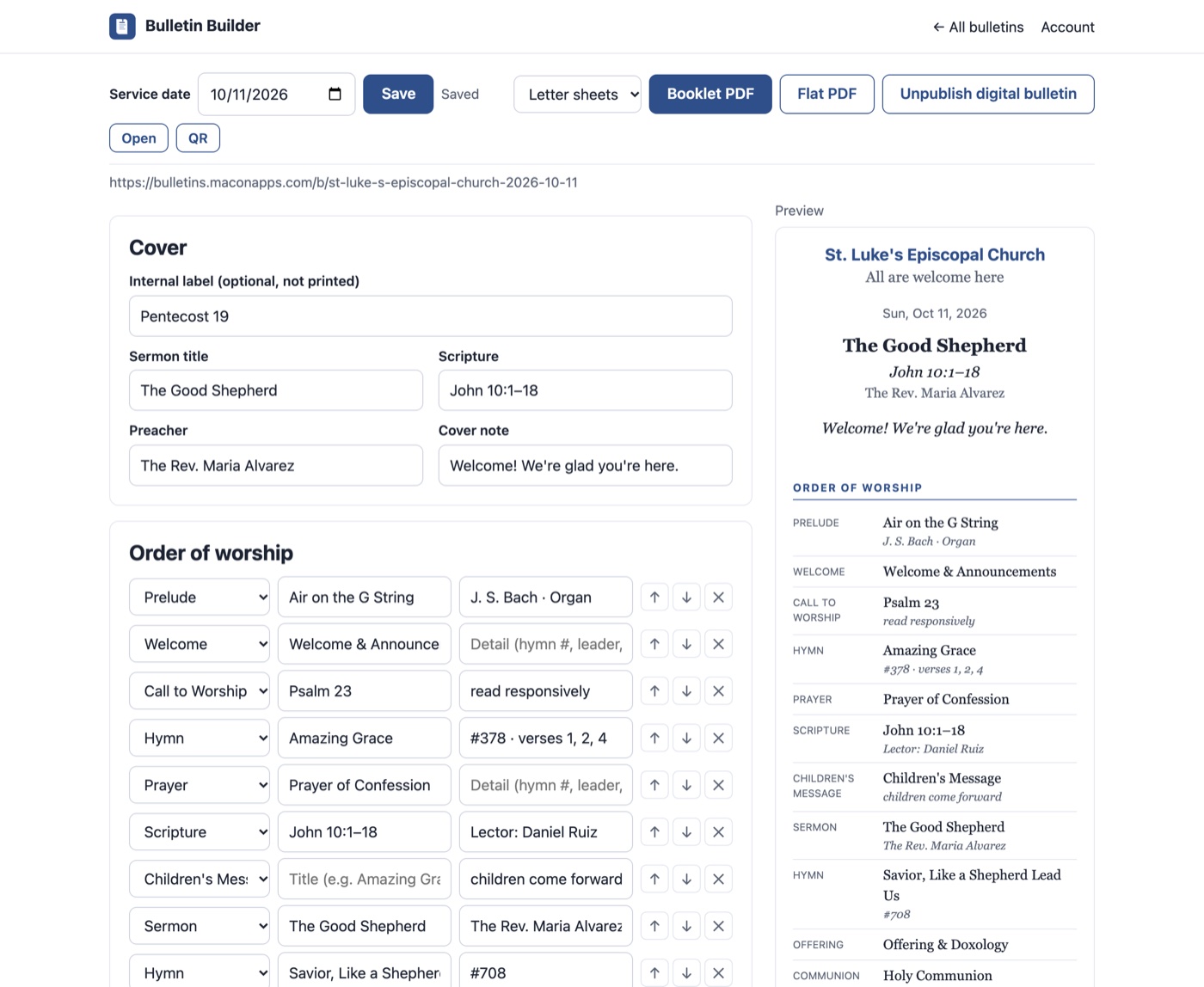
Bulletin Builder editor with the order of worship on the left and a live preview of the bulletin on the right
EditorType the sermon, scripture and order of worship; the preview updates as you type.
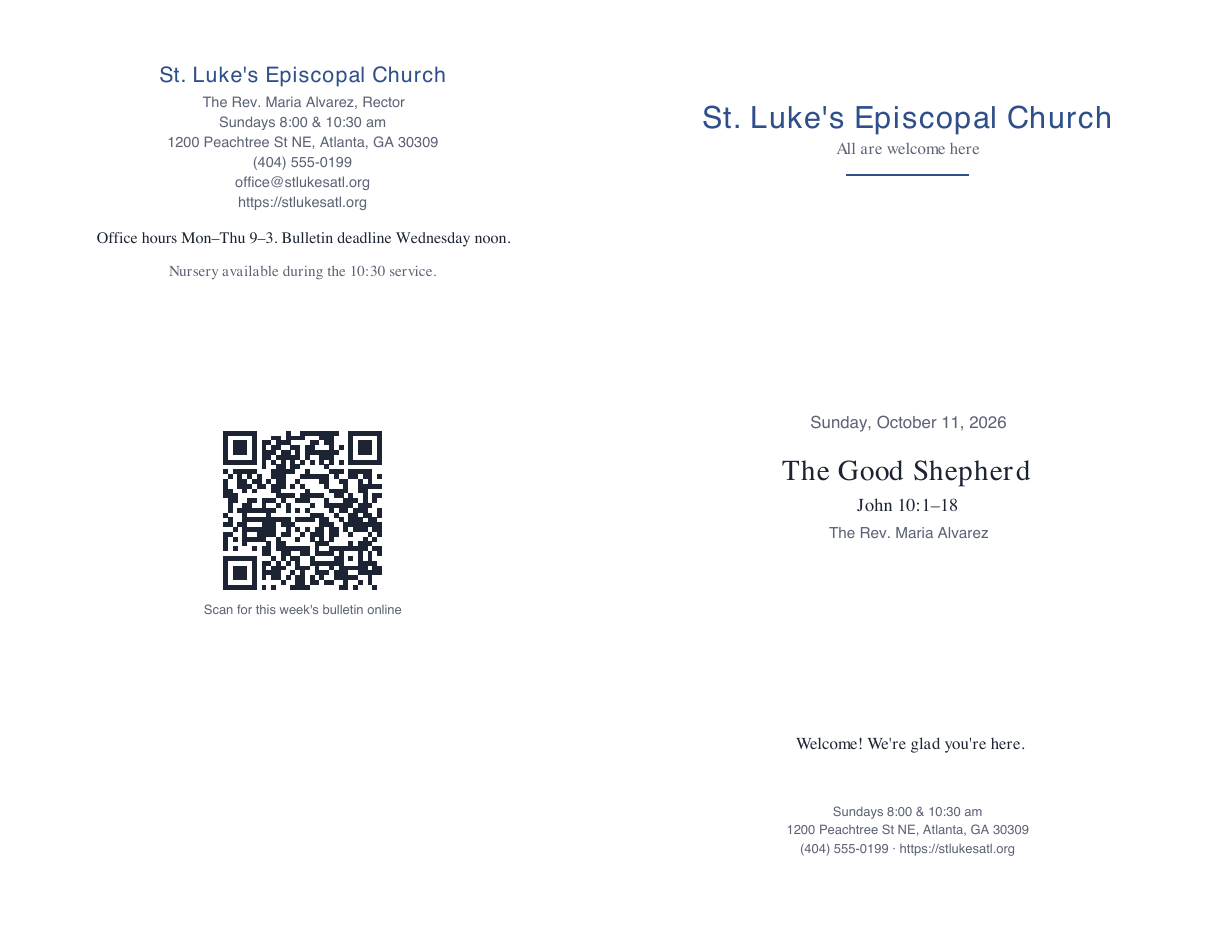
Page one of the booklet PDF: the back page with the QR code on the left and the bulletin cover on the right, imposed on one landscape Letter sheet
Booklet PDF, sheet 1Back page and cover side by side on a landscape Letter sheet, ready for the copier.
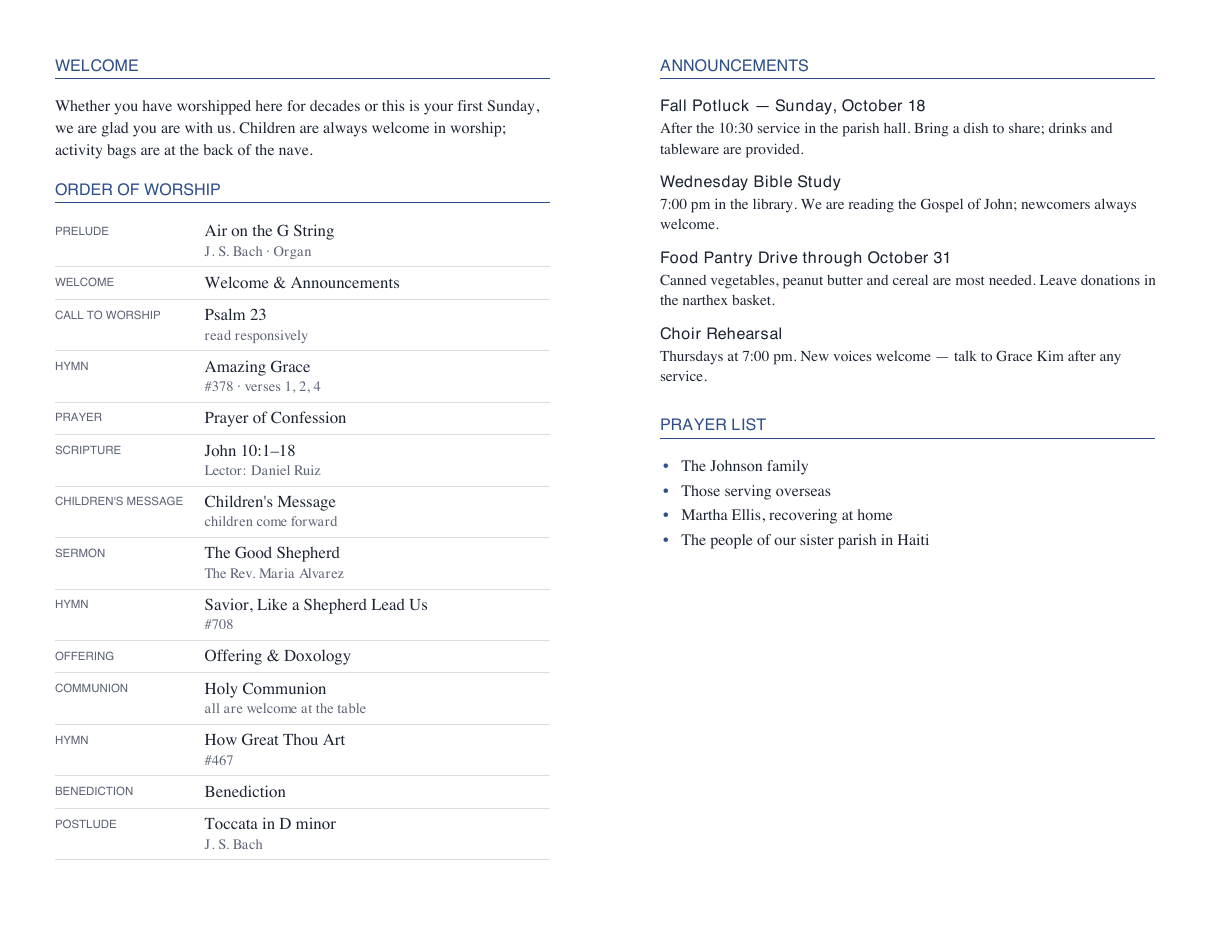
Inside of the booklet PDF: welcome paragraph and order of worship on the left, announcements and prayer list on the right
Booklet PDF, sheet 2Order of worship, announcements and prayer list on the inside pages.
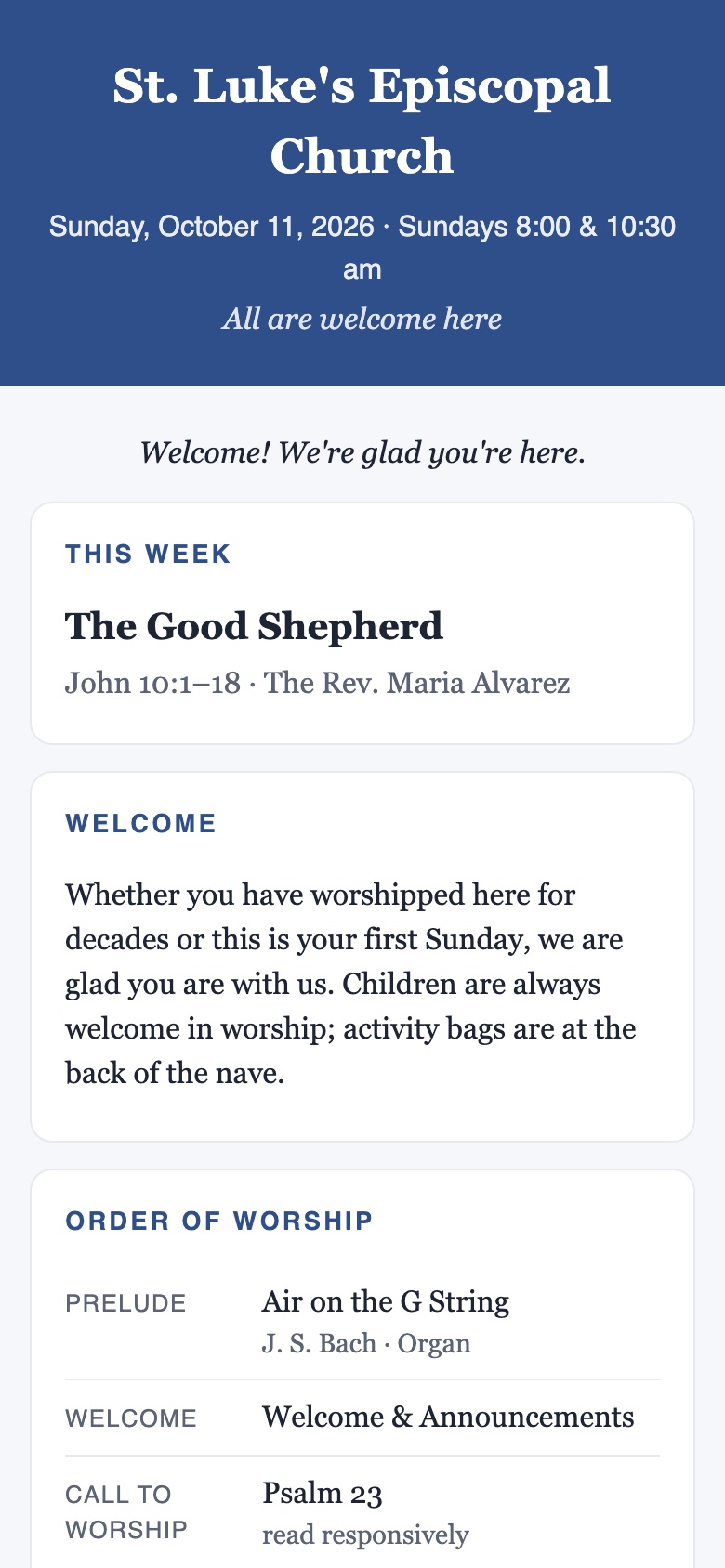
The digital bulletin on a phone: church name, service date, sermon, welcome and order of worship
Digital bulletinThe same bulletin as a mobile-friendly page, opened from the QR code.
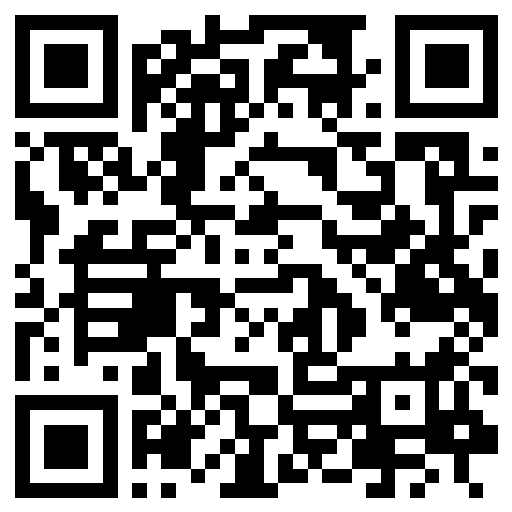
Permanent QR code that opens a church's latest published bulletin
Permanent QR codeOne code per church, printed once on signage; it always opens this week's bulletin.
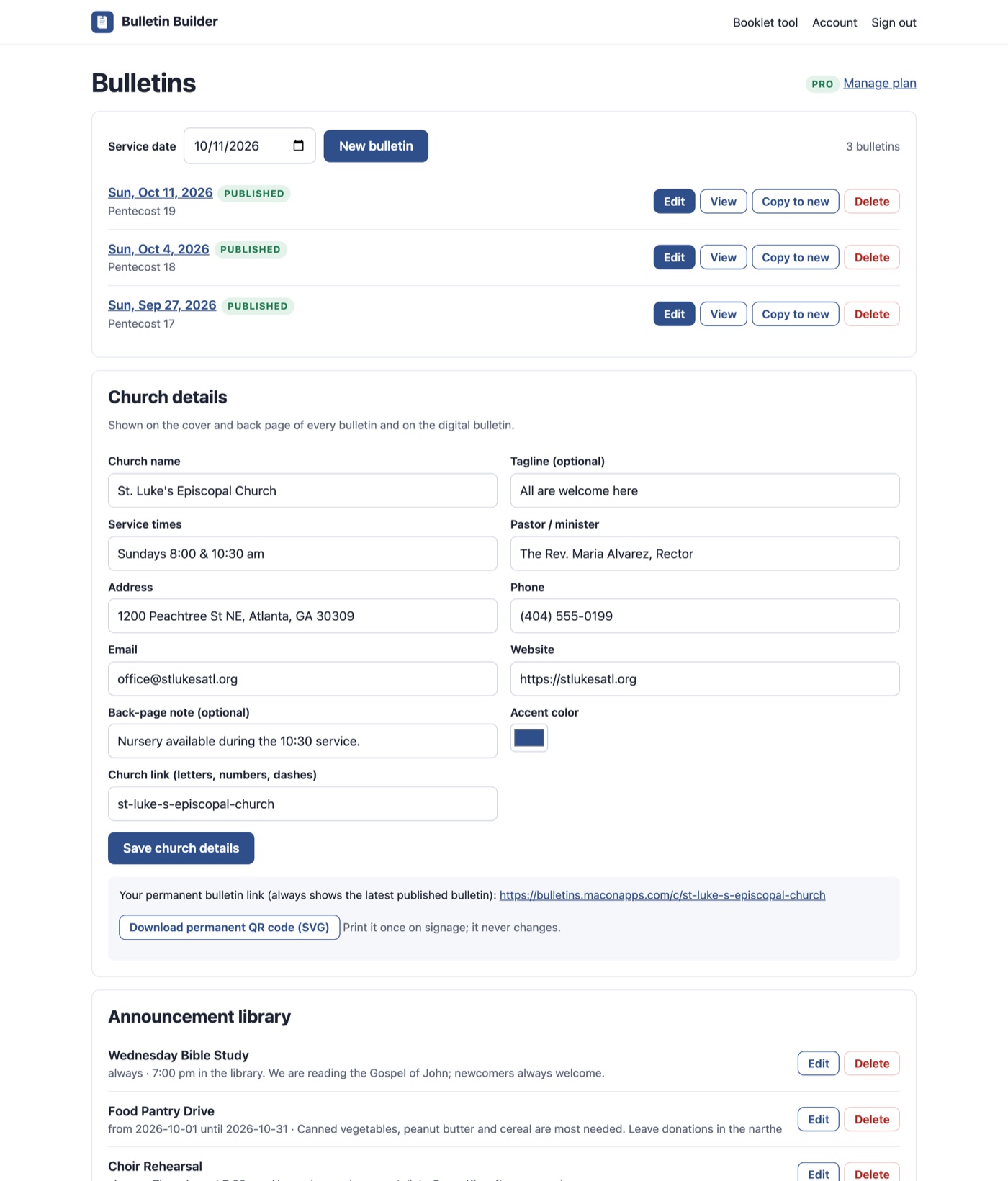
Bulletin Builder dashboard listing published bulletins, the church details form, the permanent church link and the announcement library
DashboardYour bulletins, church details, permanent link and the recurring-announcement library.

What It Does

Built for church secretaries and volunteers who used to lay out bulletins in Microsoft Publisher. You type; the layout, page order and QR code are handled for you.

Print-Ready Folded Booklet

  • Half-letter pages imposed two-up on landscape Letter, Legal or A4 sheets, in the right order for folding.
  • Page count padded to a multiple of four automatically; cover, inside pages and back page laid out for you.
  • A flat, single-page PDF for emailing or screens.

Digital Bulletin + QR Code

  • Every published bulletin gets a clean, mobile-friendly web page.
  • One permanent church link and QR code always opens the latest published bulletin, so you print the code once.
  • The QR code is printed on the back page of the booklet too.

Recurring Announcements

  • Keep a library of announcements with optional start and end dates: weekly Bible study, a food drive through the 31st.
  • Active ones drop into each new bulletin automatically, and you can pull them into any bulletin with one click.

Copy Last Week

  • Start the new bulletin from last Sunday's order of worship and change only what is different.
  • Sermon, scripture and one-off announcements are cleared; the structure, cover note and prayer list carry over.

Private by Design

  • PDFs are generated on your own computer in the browser and never uploaded.
  • Sign in with an emailed link; there is no password to forget.
  • Unpublished bulletins are private; only what you publish is public.

Ten Minutes a Week

  • Sensible defaults: a standard order of worship is seeded in every new bulletin.
  • Keyboard shortcuts (Ctrl+S saves), a live preview, and no page layout to fight.

How to Use Bulletin Builder, Step by Step

Everything a first-time user needs, in the order you will do it. Most churches finish their first bulletin in about ten minutes and the following weeks in less.

Step 1

Sign in with your email

Go to bulletins.maconapps.com, enter your church office email address and click Email me a sign-in link. Open the link in the email and you are signed in. There is no password.

  • The link works once and expires after 20 minutes; request another any time.
  • New accounts get 3 days of Pro automatically, with no card on file.
  • Use one account per church. Everyone who shares the office mailbox shares the account.

Nothing in your inbox? Check spam, then request a new link. The email comes from [email protected].

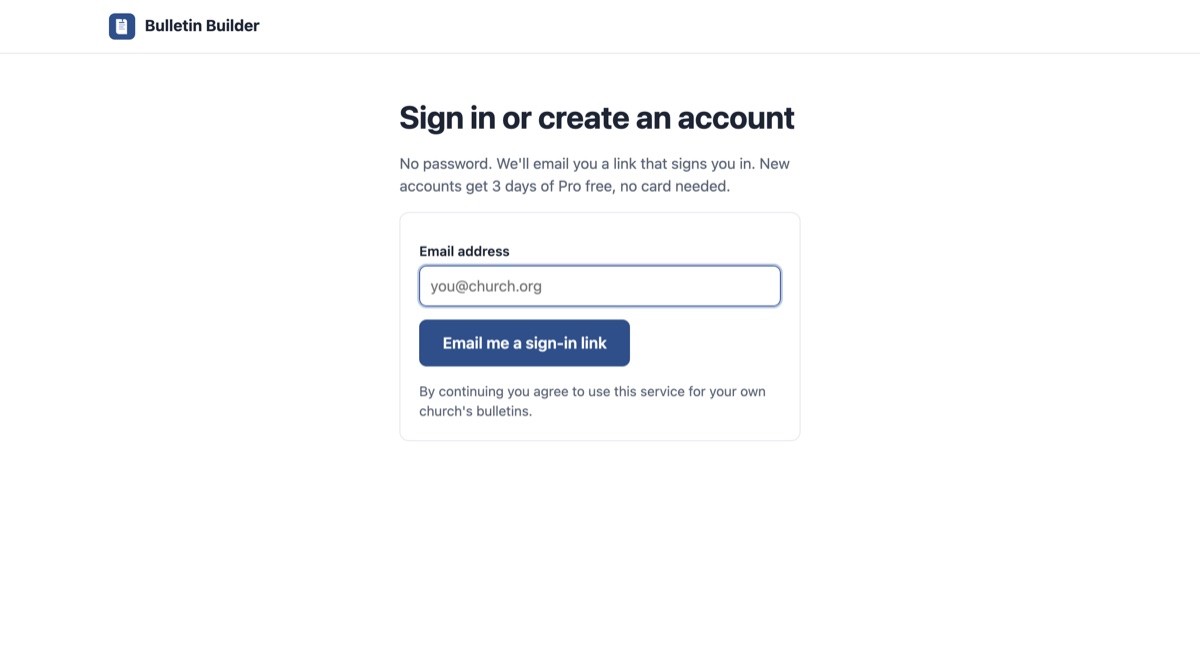
Bulletin Builder sign-in page asking for an email address
Sign in or create an account with just an email address.
Step 2

Enter your church details once

On the Bulletins page, scroll to Church details and fill in the church name, tagline, service times, pastor, address, phone, email and website. Pick an accent color if you like, then click Save church details.

  • These details print on the cover and back page of every bulletin and head the digital bulletin, so you only type them once.
  • Saving the name creates your church link (for example …/c/st-luke-s-episcopal-church). You can change the link text; letters, numbers and dashes only.
  • Click Download permanent QR code (SVG) to get the code for your signage or welcome slide. It never changes.
Dashboard showing the bulletin list, church details form, permanent church link with QR download, and the announcement library
Bulletins, church details and the permanent link live on one page.
Step 3

Create the bulletin and type the service

At the top of the Bulletins page, check the Service date (it defaults to next Sunday) and click New bulletin. The editor opens with a standard order of worship already in place.

  1. Fill in the Cover: sermon title, scripture, preacher and a short cover note. The internal label (for example "Pentecost 19") is only for your list.
  2. Work down the Order of worship. Each row has a type (Hymn, Prayer, Scripture…), a title and a detail line for hymn numbers, verses or the reader's name. Use the arrows to reorder, ✕ to remove, and + Add item for more.
  3. Watch the Preview on the right update as you type.
  4. Click Save or press Ctrl+S (⌘+S on a Mac). The status shows the last save time.

Leave a title blank and the row prints its type instead, so "Benediction" with no title still reads correctly.

Editor with cover fields, the order of worship rows and the live preview
The editor: cover, order of worship and a live preview.
Step 4

Add announcements, the prayer list and notes

Below the order of worship:

  • Announcements: click + Add announcement for this week's news (title, then details), or Add active ones from library to pull in every recurring announcement that is active on the service date.
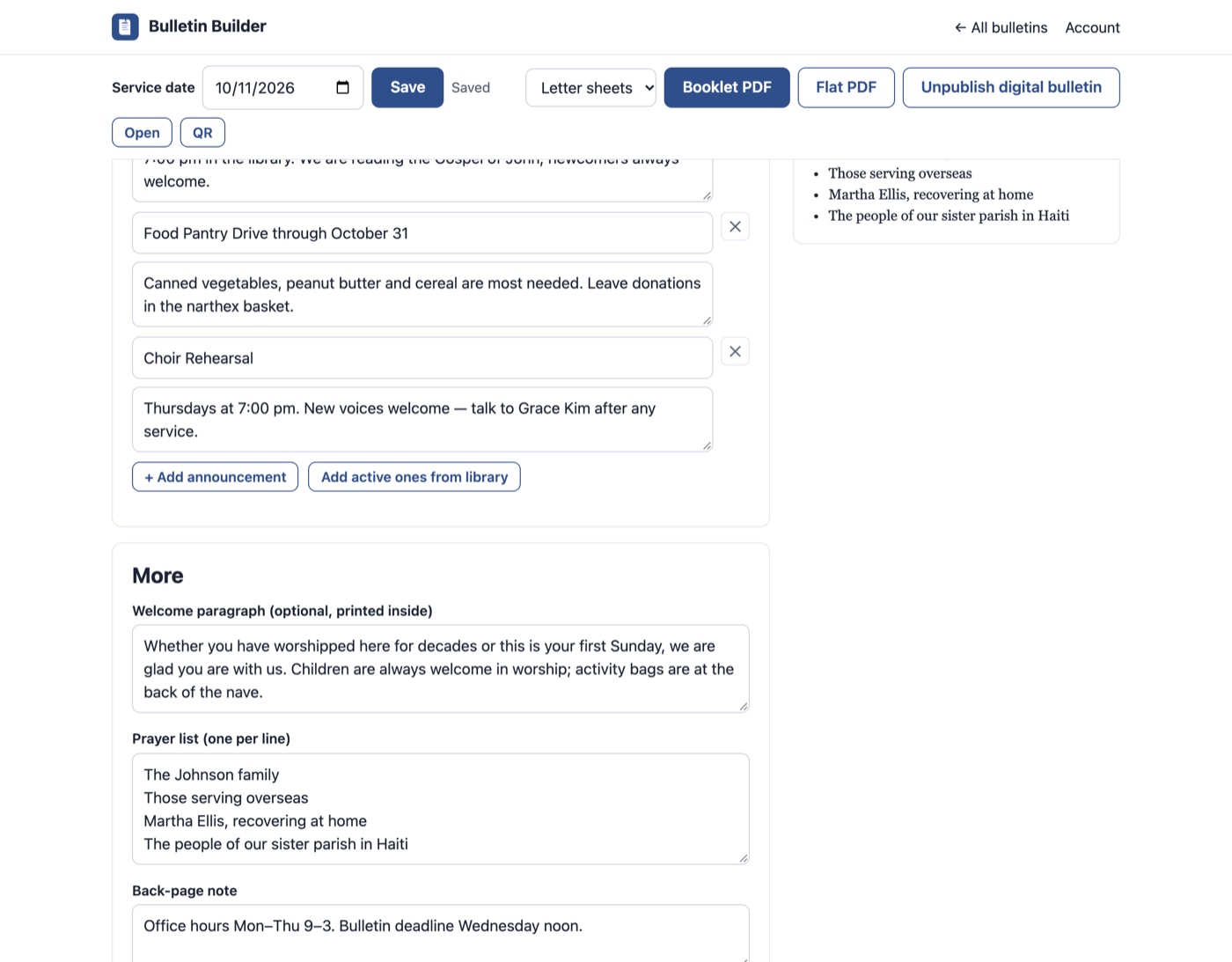
  • Welcome paragraph: an optional note printed inside the front cover.
  • Prayer list: one name or request per line.
  • Back-page note: office hours, bulletin deadline, nursery information.
  • QR code: leave the box ticked to print the digital-bulletin QR code on the back page.

The Announcement library itself lives on the Bulletins page. Give each item an optional Show from and Show until date and it appears in new bulletins only while it is active.

Editor section with announcements, the welcome paragraph, prayer list and back-page note
Announcements, prayer list and notes.
Step 5

Download the booklet PDF and print it

Choose the sheet size in the toolbar (Letter is the usual half-letter booklet; Legal and A4 are available) and click Booklet PDF. The PDF downloads to your computer; it is built right in the browser.

  1. Open the PDF and print double-sided.
  2. Choose flip on short edge (sometimes called short-edge binding). On most copiers this is the default for landscape duplex.
  3. Fold the stack in half. Page 1 is the cover, the last page is the back.

Print one copy first and fold it. If the back side comes out upside down, switch to long-edge flip. Set the printer to actual size rather than fit-to-page so margins stay consistent.

Need single pages for email or a screen? Click Flat PDF instead.

Booklet sheet one: back page with QR code and the cover, side by side
Sheet 1, front side: back page on the left, cover on the right. Fold once and the cover is on the outside.
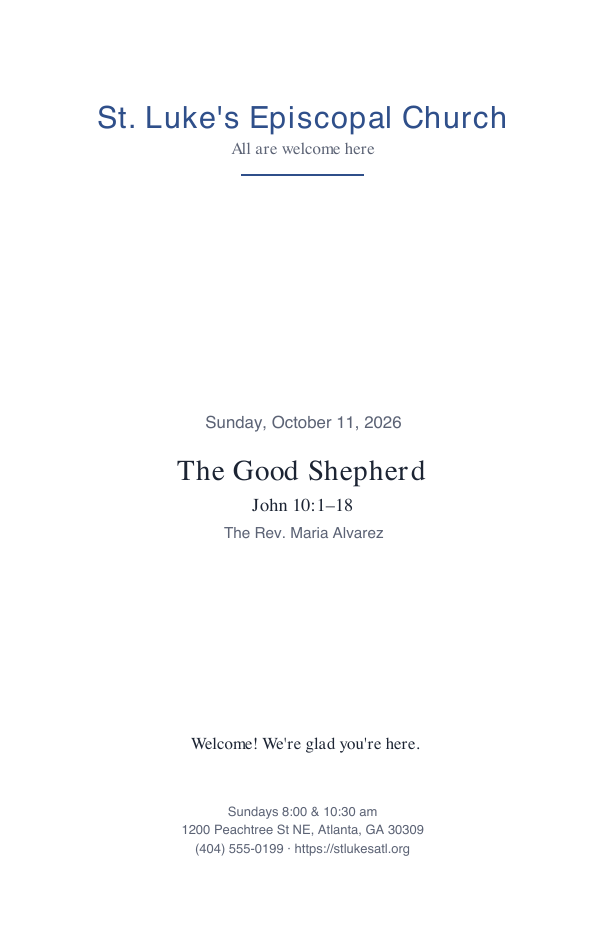
Bulletin cover page with church name, date, sermon title and scripture
The cover (flat PDF, page 1)
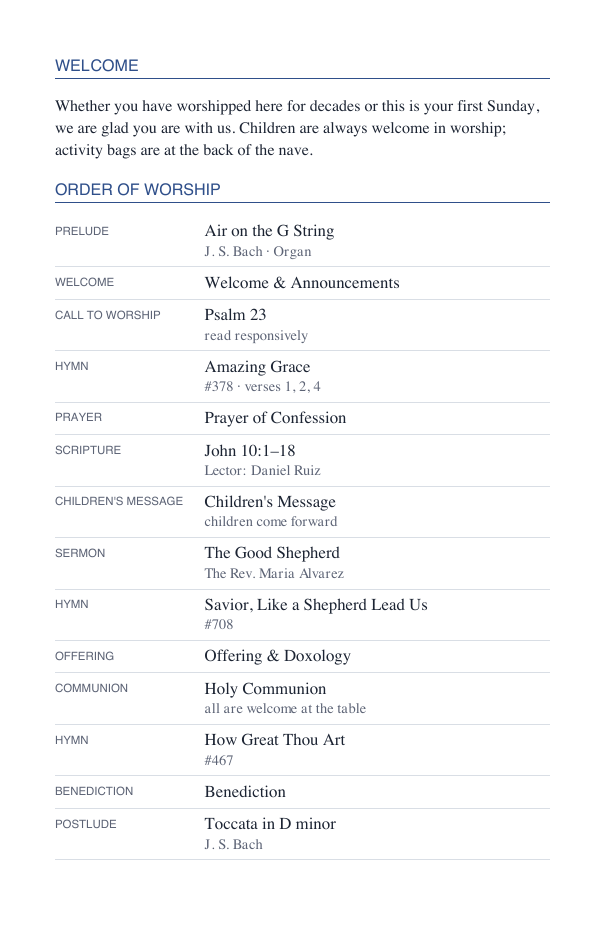
Inside page with the order of worship
An inside page
Step 6

Publish the digital bulletin

Click Publish digital bulletin in the toolbar. Two things happen:

  • The bulletin gets its own web page (Open shows it; the address is listed under the toolbar) with a QR button for a code that points to this specific bulletin.
  • Your permanent church link and QR code now open this bulletin as the latest one. Next week, publish again and the same code opens the new bulletin.

Visitors see the church name, service time, sermon, order of worship, announcements, prayer list and contact details on a page sized for phones. Nothing needs to be installed.

Changed your mind? Click Unpublish digital bulletin and the page goes private again. Edits to a published bulletin go live when you save.

Put the permanent QR code on the welcome slide, the sign at the door and the back of the printed bulletin. Print it once; it never changes.

Digital bulletin page on a phone showing the sermon, welcome and order of worship
The digital bulletin on a phone.
Step 7

Next week: copy and change what's different

On the Bulletins page, click Copy to new on last week's bulletin. A new bulletin opens for the next service date with the same order of worship, cover note and prayer list. The sermon, scripture and one-off announcements are cleared, and any library announcements active on the new date are added automatically.

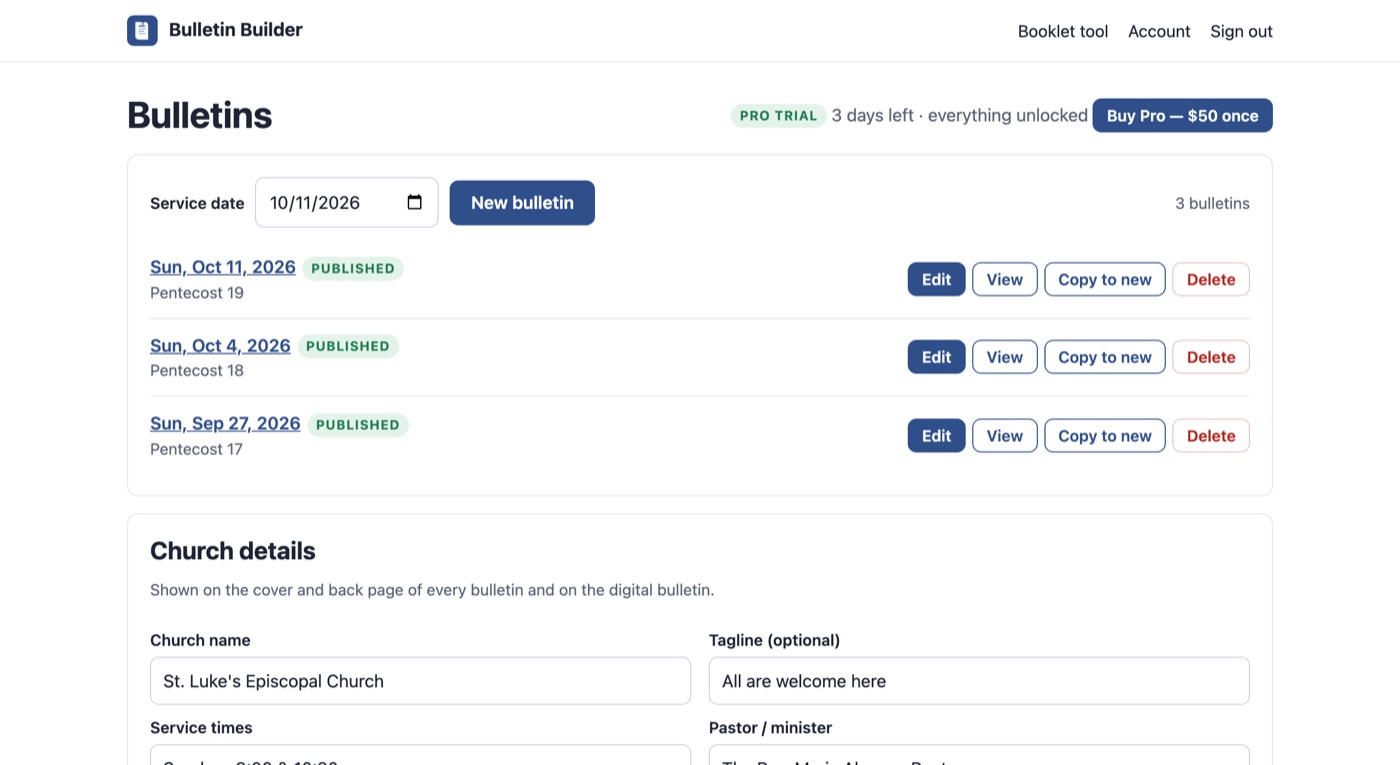
  • Edit reopens a bulletin; View opens its public page; Delete asks for confirmation first.
  • The list shows each bulletin's date, your internal label and whether it is published.
  • On the Free plan the three most recent bulletins are kept; delete an old one to make room, or move to Pro for unlimited history.
Bulletin list with Edit, View, Copy to new and Delete buttons for each bulletin
Each bulletin can be edited, viewed, copied to a new date or deleted.
Step 8

Fold any PDF with the free booklet tool

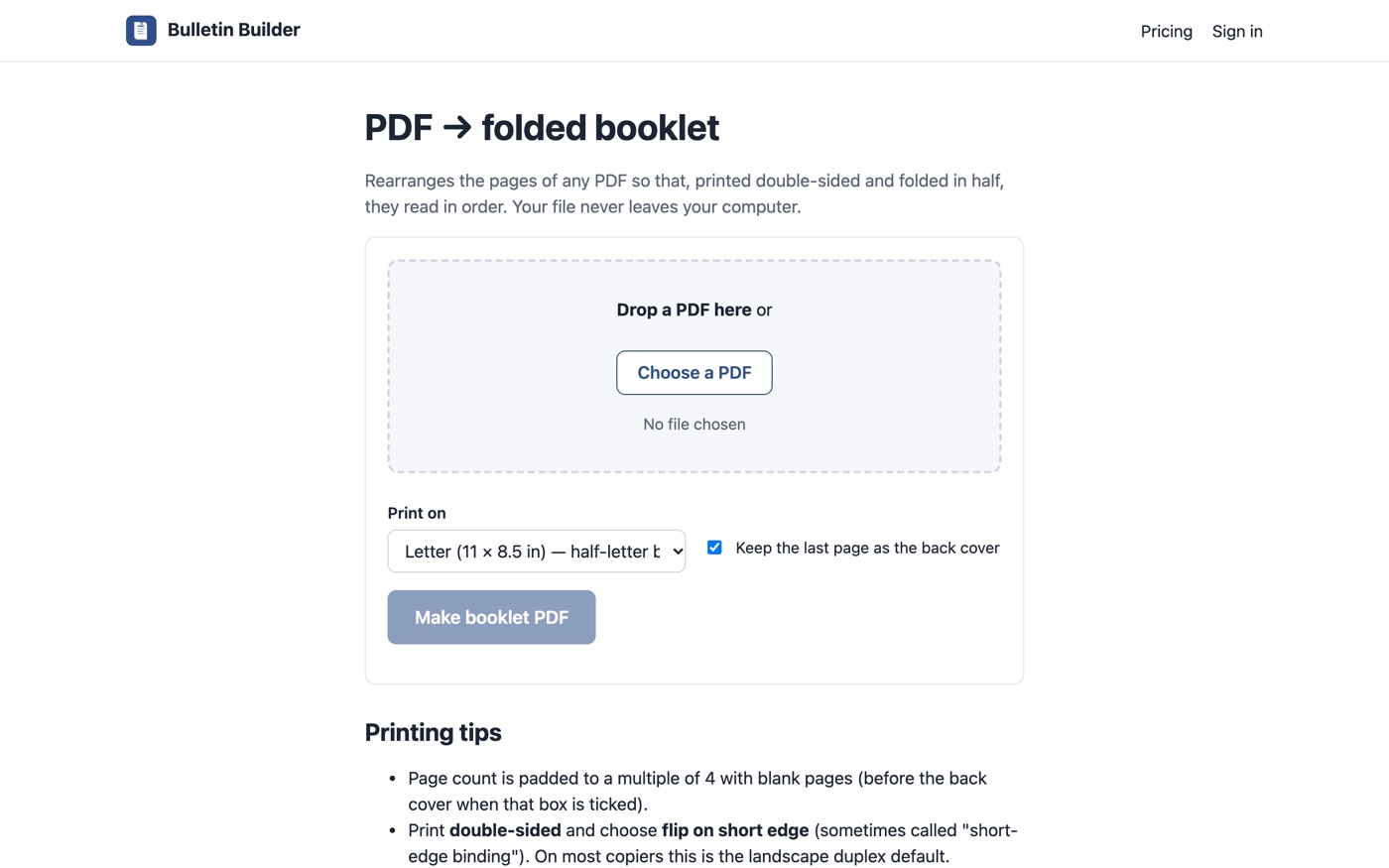
If you design the bulletin elsewhere (Word, Google Docs, Canva, a leftover Publisher export), the PDF to booklet tool rearranges its pages so that, printed double-sided and folded, they read in order. No account is needed and the file never leaves your computer.

  1. Drop the PDF on the page or click Choose a PDF.
  2. Pick the sheet size (Letter, Legal, A4 or A3) and whether the last page should stay the back cover.
  3. Click Make booklet PDF. The page count is padded to a multiple of four with blank pages, and the result downloads.

It is the same imposition engine Bulletin Builder uses for its own booklets, so the printing instructions above apply.

The free PDF to booklet tool with a drop zone, sheet-size selector and Make booklet PDF button
The free PDF to booklet converter.

Plans, Trial & Billing

Every new account starts with three days of Pro, no card needed. After that, stay on Free or buy Pro once. Nothing you made is ever deleted when a trial ends.

Free

$0
  • Full editor, booklet and flat PDF
  • Digital bulletin with QR code
  • Keeps your 3 most recent bulletins
  • Small "Made with Bulletin Builder" line on the back page

Pro

$50 one time, per church
  • Unlimited saved bulletins
  • No "Made with" line
  • Announcement library with date windows
  • Priority support through the help desk
  • No subscription; the license lasts for the life of the service (terms)

Buying & Restoring

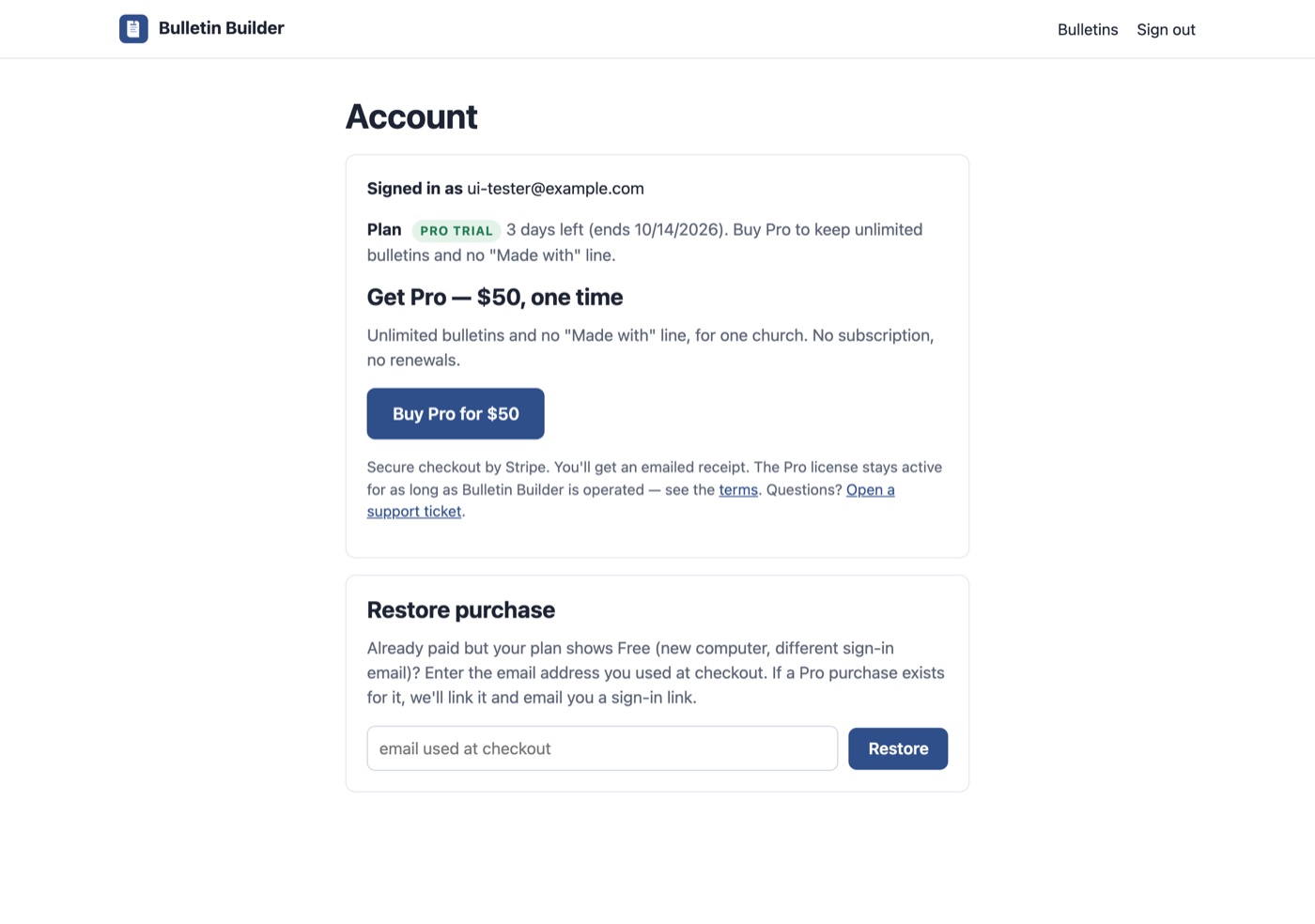
Account page
  • Buy Pro for $50 opens secure Stripe checkout; your account is upgraded as soon as payment completes and a receipt is emailed.
  • View receipt & payment details opens your Stripe customer portal.
  • Restore purchase: on a new computer or a different sign-in email, enter the email used at checkout and the purchase is linked to that account with a sign-in link emailed to it.
Account page showing the Pro trial status, the Buy Pro for $50 button and the Restore purchase form
AccountTrial status, the one-time Pro purchase and Restore purchase.

Questions

Does Bulletin Builder replace Microsoft Publisher for church bulletins?

Yes. Publisher was retired from Microsoft 365 in October 2026. Bulletin Builder covers the common case, a folded half-letter booklet with the order of worship, announcements, prayer list and contact details, without any page layout work. If you still design bulletins in Word or Canva, the free PDF-to-booklet tool folds that PDF into a booklet. There is also a Publisher migration guide.

How do I print the folded booklet?

Open the booklet PDF, print double-sided, choose flip on short edge, and fold the stack in half. The pages are already imposed so page 1 lands on the front and the last page on the back. If the back side prints upside down, switch to long-edge flip.

What does the free plan include?

The full editor, booklet and flat PDF export, the digital bulletin with QR code, and your three most recent bulletins. Free bulletins carry a small "Made with Bulletin Builder" line on the back page. Every new account also gets three days of Pro with no card required.

How much does Pro cost?

Pro is a one-time purchase of $50 per church: unlimited saved bulletins and no "Made with" line. There is no subscription. The license stays active for as long as the Bulletin Builder service is operated; see the terms.

What is the digital bulletin?

A clean, mobile-friendly web page of the same bulletin. Your church gets a permanent link and QR code that always opens the latest published bulletin, so you print the QR code once on a sign or slide.

Is my bulletin text uploaded anywhere?

Bulletin text is stored so you can edit and reuse it. PDFs are generated on your own computer in the browser and are never uploaded. Published digital bulletins are public web pages; unpublished ones are private.

I bought Pro but my account shows Free. What now?

Open Account, then Restore purchase, and enter the email address you used at checkout. If a Pro purchase exists for it, it is linked to that account and a sign-in link is emailed to you.

If Something Looks Wrong

SymptomExplanation
The sign-in email never arrives Check spam and the address you typed. Links expire after 20 minutes; request a new one from the sign-in page. Five links per hour can be requested for one address.
"This sign-in link is no longer valid" Each link works once. If you opened it on another device or it is older than 20 minutes, request a new link.
New bulletin says the free plan keeps 3 bulletins The Free plan stores your three most recent bulletins. Delete an old one from the Bulletins page, or buy Pro for unlimited history.
The booklet prints with the back side upside down The printer flipped on the long edge. Choose flip on short edge (short-edge binding) in the print dialog, or if that is what you used, try long-edge; copiers label this differently.
Blank pages appear in the booklet By design: a folded booklet needs a page count that is a multiple of four, so blank pages are added before the back page.
An emoji or symbol is missing from the PDF The PDF uses standard print fonts. Emoji and some non-Latin characters are dropped from the print version; accents, curly quotes and dashes are fine. The digital bulletin shows everything.
The QR code opens an old bulletin The permanent church code opens the latest published bulletin by service date. Make sure this week's bulletin is published, and that its service date is the newest.
The digital page shows "Bulletin not found" The bulletin is unpublished or the link is mistyped. Publish it from the editor, or use the permanent church link instead of a dated one.
Library announcements were not added to a new bulletin Only items active on the service date are added: check their Show from / Show until dates. Inside the editor, "Add active ones from library" adds them for the current date.
You paid but the account still shows Free or trial Open Account; it re-checks the purchase. If it still shows Free, use Restore purchase with the email used at checkout, or open a support ticket with that email address.

Questions about Bulletin Builder?

Open a ticket in the support portal with your church name and what you were doing, and we'll get you sorted out.

Open the Support Portal