
What Macon Calendar Tools Does
The new Outlook dropped three things people relied on: the classic print layouts, the Planner calendar feed, and a clean way to get your calendar into a spreadsheet. Macon Calendar Tools brings all three back as one web app at calendar.maconapps.com. There is nothing to install — it runs in any modern browser on Windows, Mac, iPad or Chromebook — and your calendar, mail and contact data are read in your browser straight from Microsoft. They never pass through our servers.
TriFold
Monthly, weekly, daily, tri-fold, weekly with details, multi-week, yearly and agenda layouts — to paper or PDF, Letter or A4, with your calendar colors.
Free monthly, weekly, daily Pro the rest + presets
PlanFeed
A timeline of everything assigned to you, an .ics download, and — on Pro — tasks pushed into a dedicated Outlook calendar plus a hosted feed Outlook refreshes on its own.
Free timeline, .ics Pro push, feed, print
OutlookXL
Any date range of your calendar as a spreadsheet with real dates, durations and categories; hours-by-category and hours-by-week summaries; mail folders and contacts too.
Free calendar, 100 rows Pro unlimited + summaries, mail, contacts
Works with
- New Outlook and classic Outlook for Windows, Outlook for Mac
- Outlook on the web and personal Outlook.com / Hotmail accounts
- Microsoft 365 work and school accounts (Planner needs a work or school account)
- Google Calendar and any calendar that publishes an .ics link, and any .ics file
1. Get Your Calendar Into the App
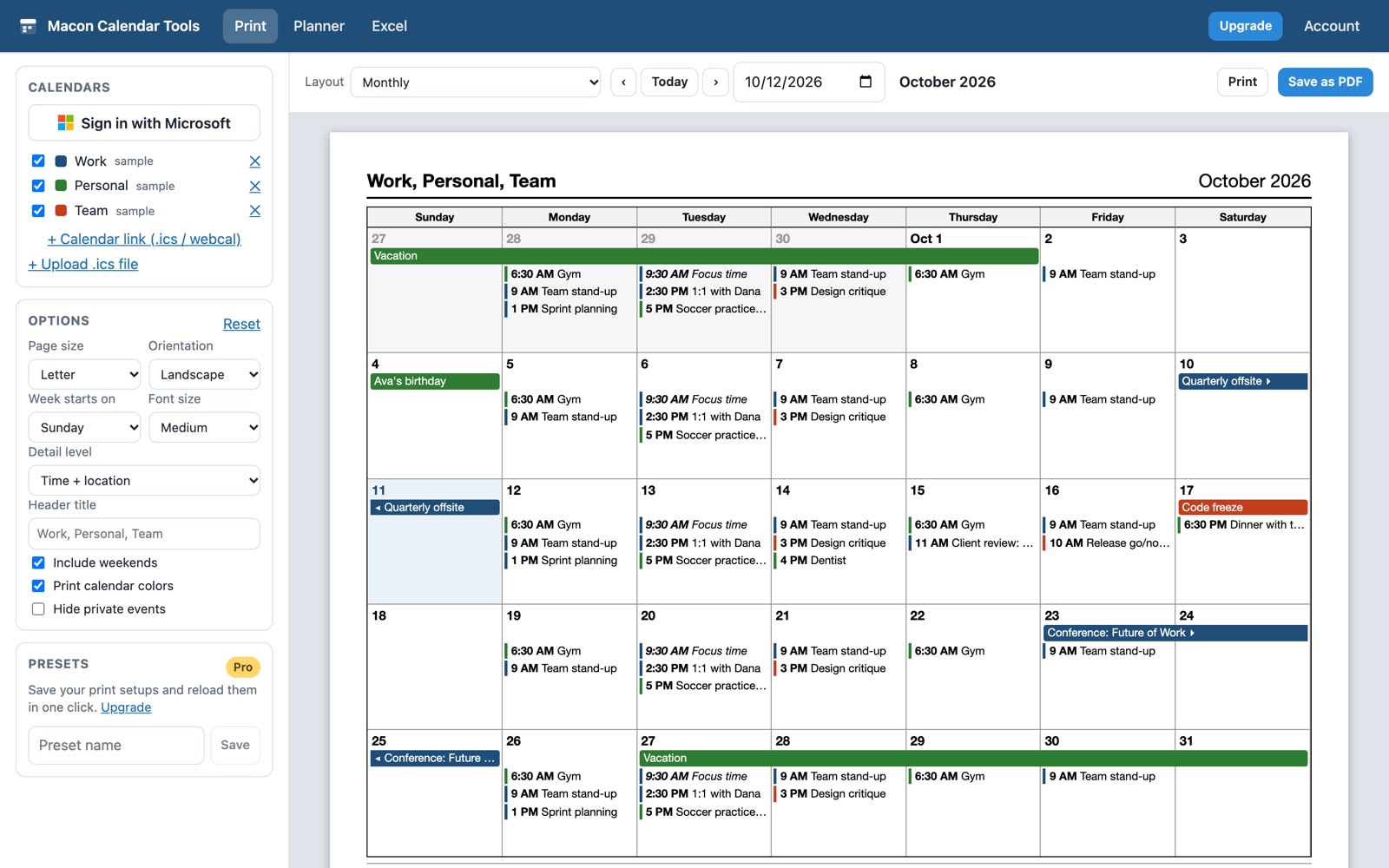
The Calendars panel on the left of the Print and Excel tools lists every calendar the app can see. Tick the ones you want on the page; each keeps its own color. There are three ways to add calendars, and you can mix them.
Sign in with Microsoft Free
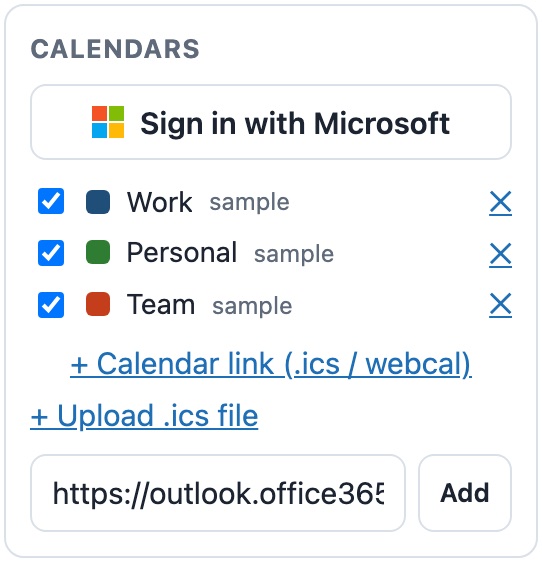
Click Sign in with Microsoft and pick your account. The app asks Microsoft for read access to your calendars and profile; every calendar you own or have been given access to — including shared and group calendars — appears in the list. The sign-in is handled by Microsoft's own login page; the app never sees your password.
Paste a calendar link Free
Click + Calendar link (.ics / webcal), paste the address and click
Add. Both https://…ics and webcal://
addresses work. Where to find the link:
- Outlook / Outlook.com: Settings → Calendar → Shared calendars → Publish a calendar → copy the ICS link.
- Google Calendar: Settings → the calendar → Integrate calendar → Secret address in iCal format.
- Public calendars (holidays, school, sports): paste the subscribe link they publish.
Upload an .ics file Free
Click + Upload .ics file and choose a file exported from Outlook (File → Open & Export → Import/Export → Export to a file) or any other calendar program. The file is parsed in your browser; repeating events are expanded correctly.
The three "sample" calendars (Work, Personal, Team) are there so you can see every layout immediately. Click the ✕ next to each one to remove them once your own calendars are loaded — or just untick them.
2. TriFold — Print Your Calendar
Classic Outlook's print dialog offered Daily, Weekly, Monthly, Tri-fold and Calendar Details styles. The new Outlook prints the view on screen and little else. TriFold reads your calendar and prints real layouts, to paper or to a PDF.
Step by step
- Open Print and add your calendars (section 1). Tick the ones you want on the page.
- Pick a Layout in the toolbar. Pro layouts are marked (Pro); you can preview any of them for free.
- Move to the right date with ‹ ›, Today, or the date box. The preview re-draws as you go.
- Set your Options (below). The preview is exactly what will print.
- Click Print for paper, or Save as PDF. In the print dialog choose your printer, or Save as PDF / Microsoft Print to PDF as the destination. The page title becomes the file name.

The options
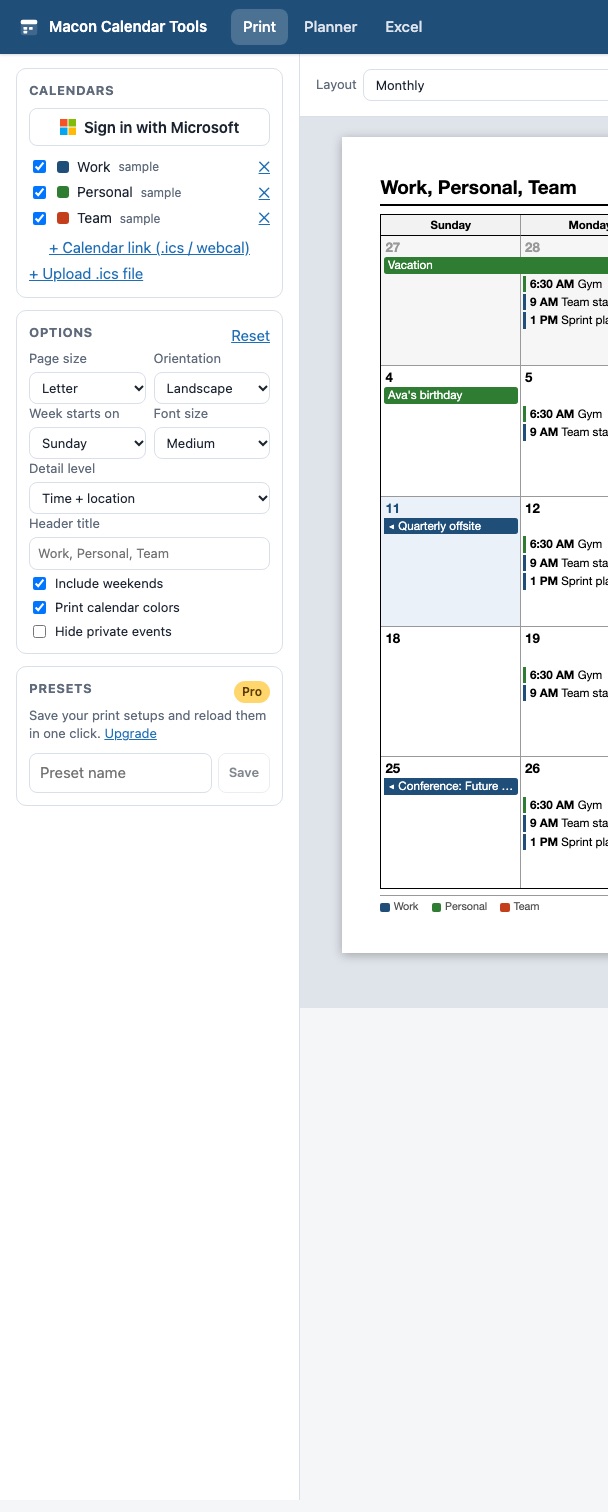
- Page size — Letter or A4. Match it to the paper in the printer.
- Orientation — portrait or landscape where the layout allows it (tri-fold, multi-week and yearly are always landscape).
- Week starts on — Sunday, Monday or Saturday.
- Font size — small, medium or large. Smaller fits more events per day.
- Detail level — Titles only, Time + location, or Full details (adds attendees and descriptions on the layouts that have room).
- Header title — the text printed top-left; defaults to the names of the calendars you ticked.
- Include weekends — untick for a Monday-to-Friday grid.
- Print calendar colors — untick for a black-and-white printer.
- Hide private events — leaves events marked private off the page.
- Reset puts everything back to the defaults.
Presets Pro
Set the options up the way you like — say, "Front desk week, A4, Monday start, titles only" — type a name in the Presets panel and click Save. Next time, one click reloads the whole setup. Presets are saved to your account, so they follow you to other computers.
The layouts
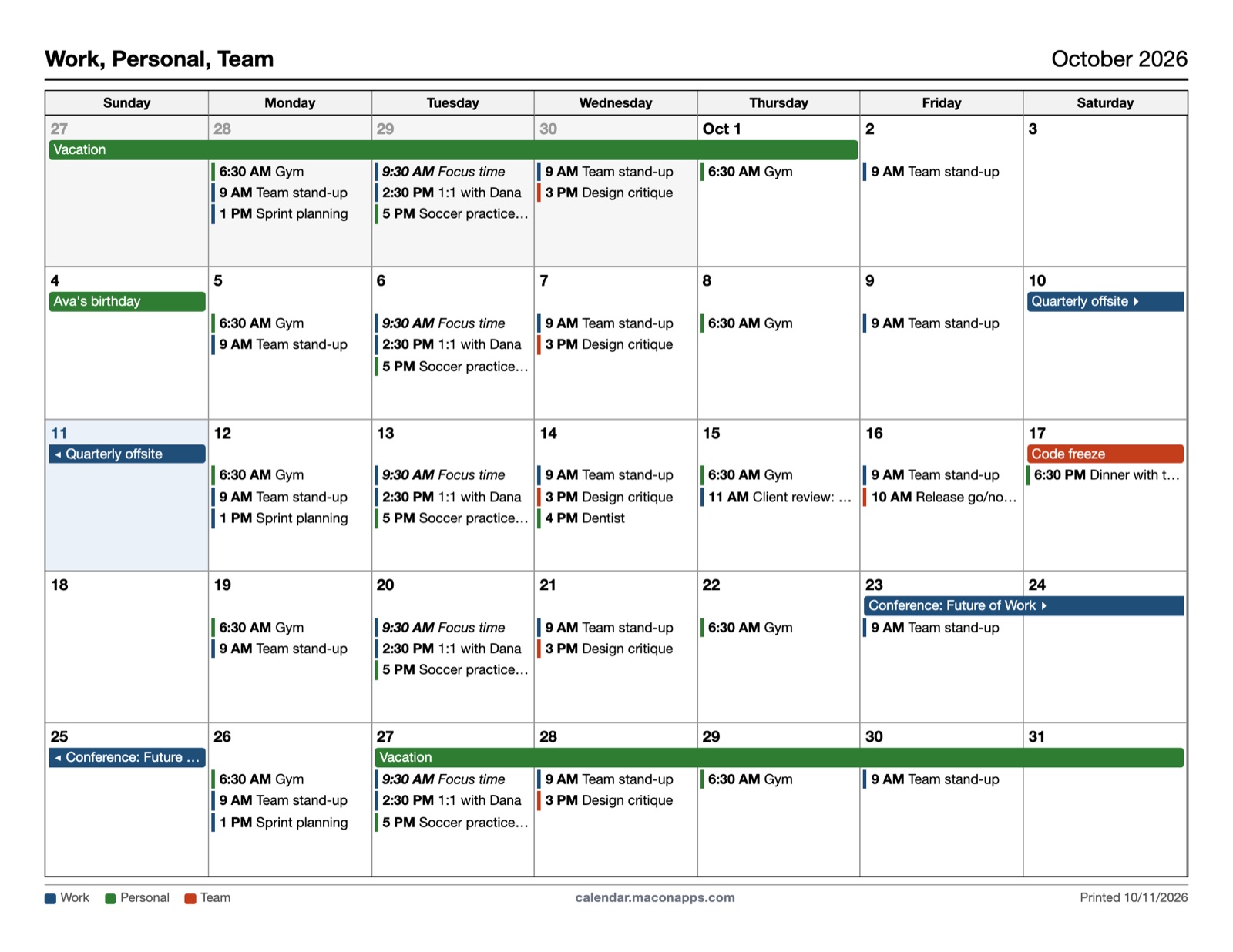
All eight, shown here with the sample calendars. Click any layout name in the app to preview it with your own data.
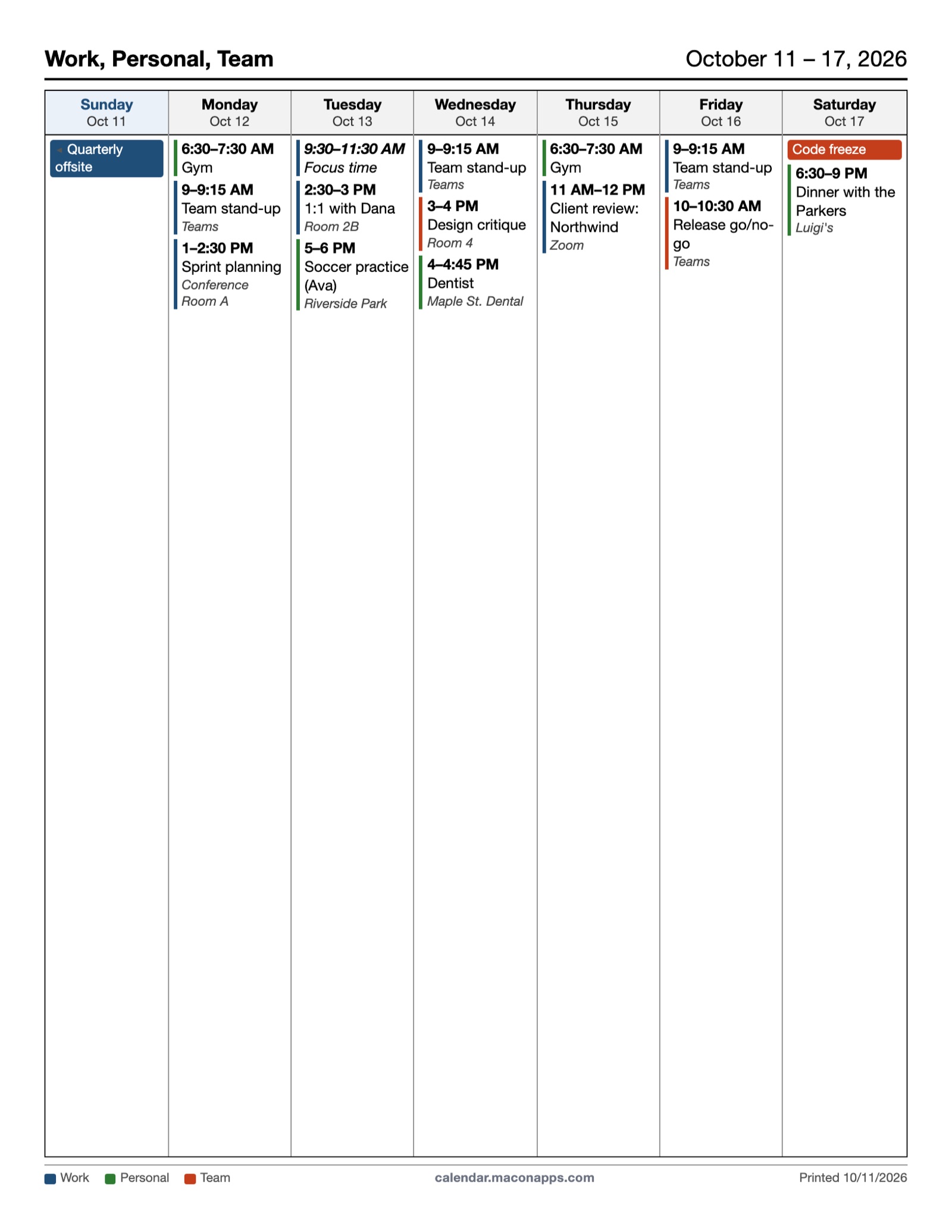
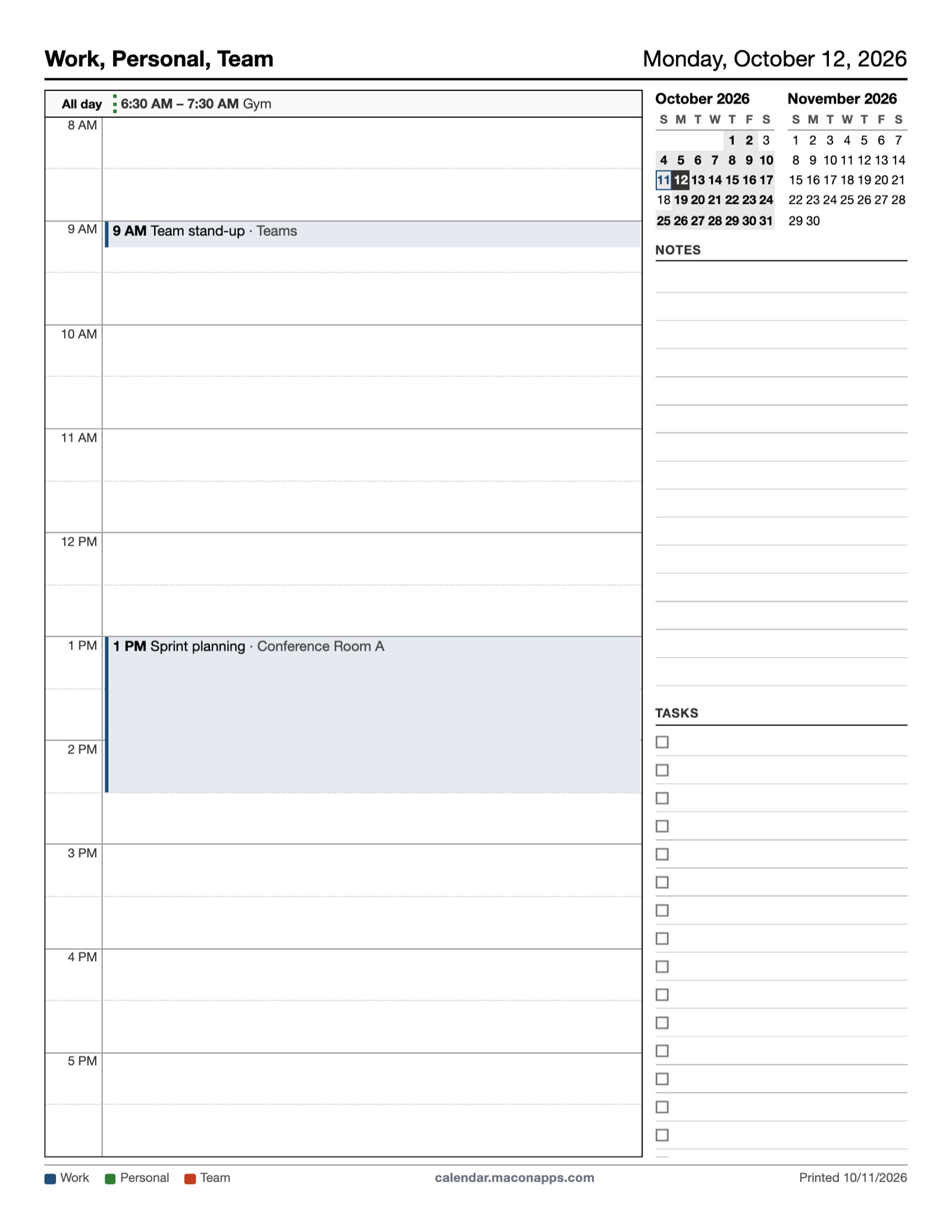
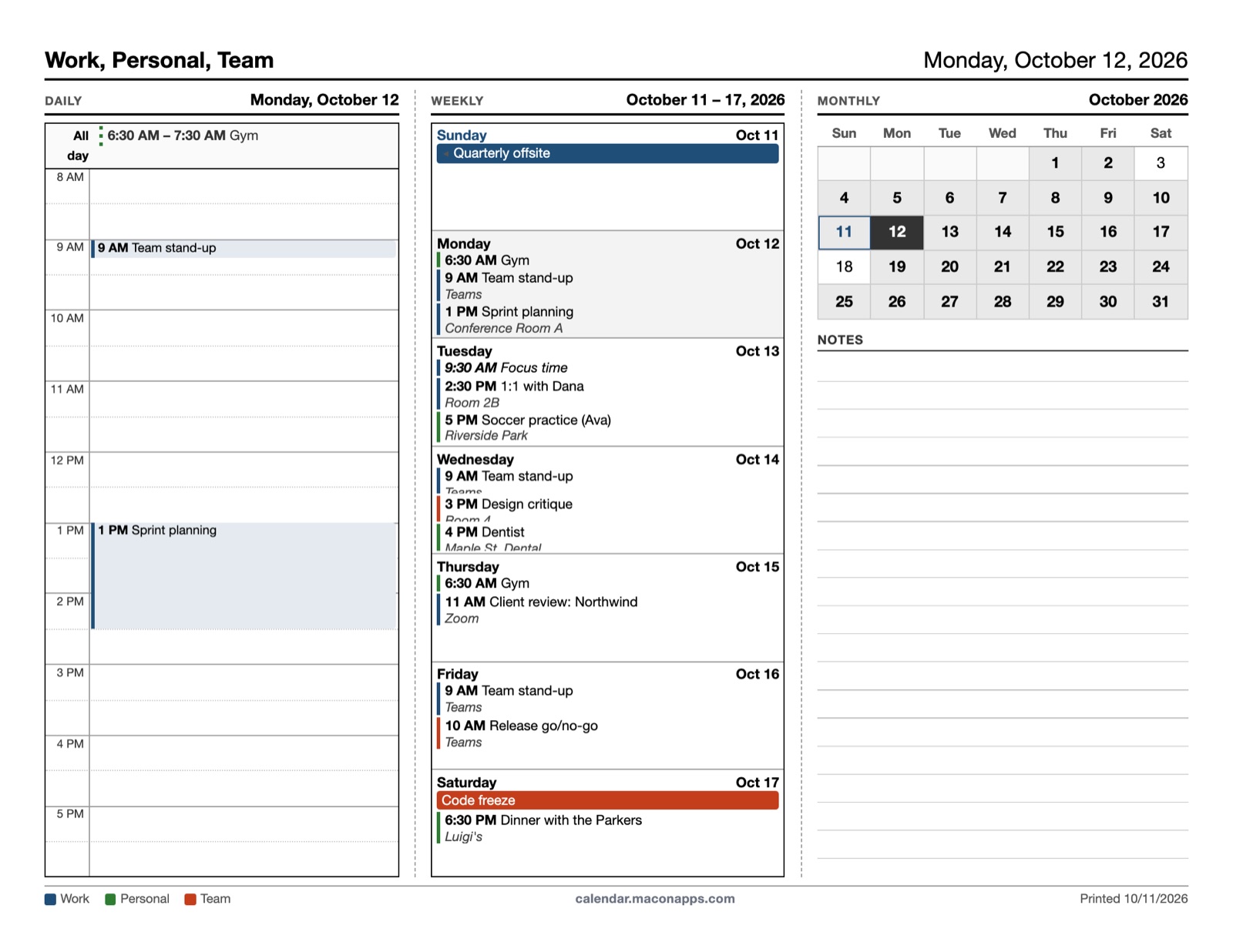
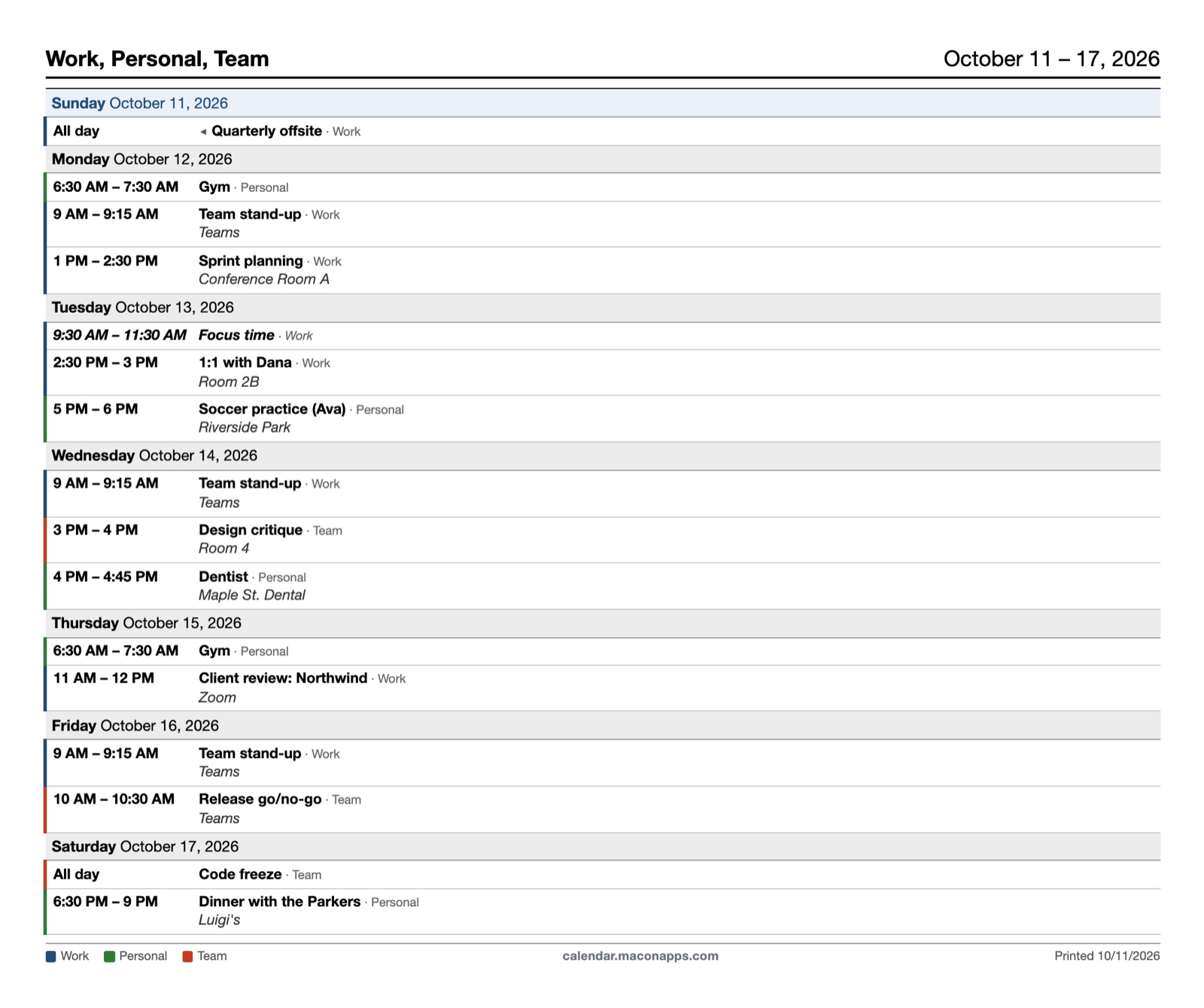
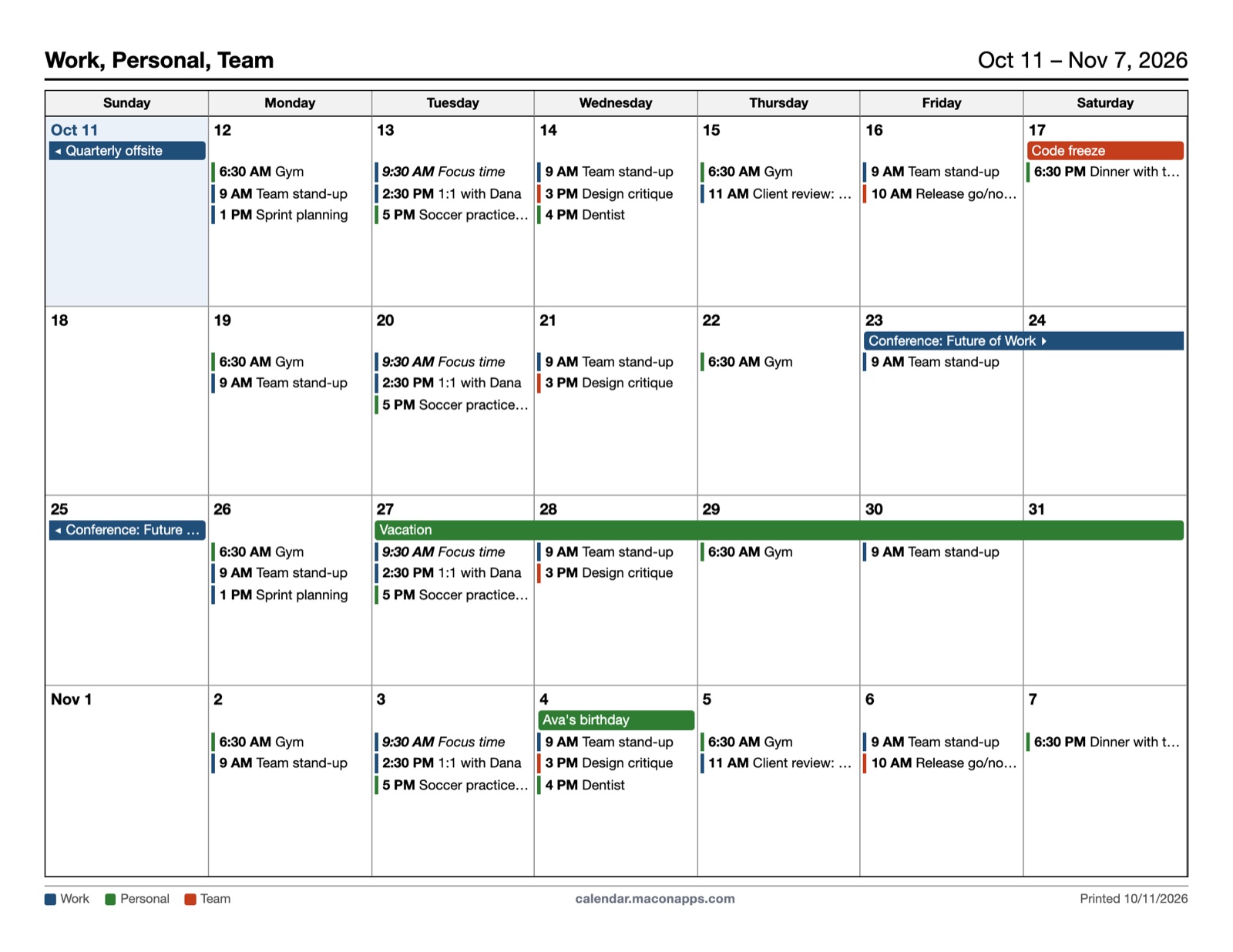
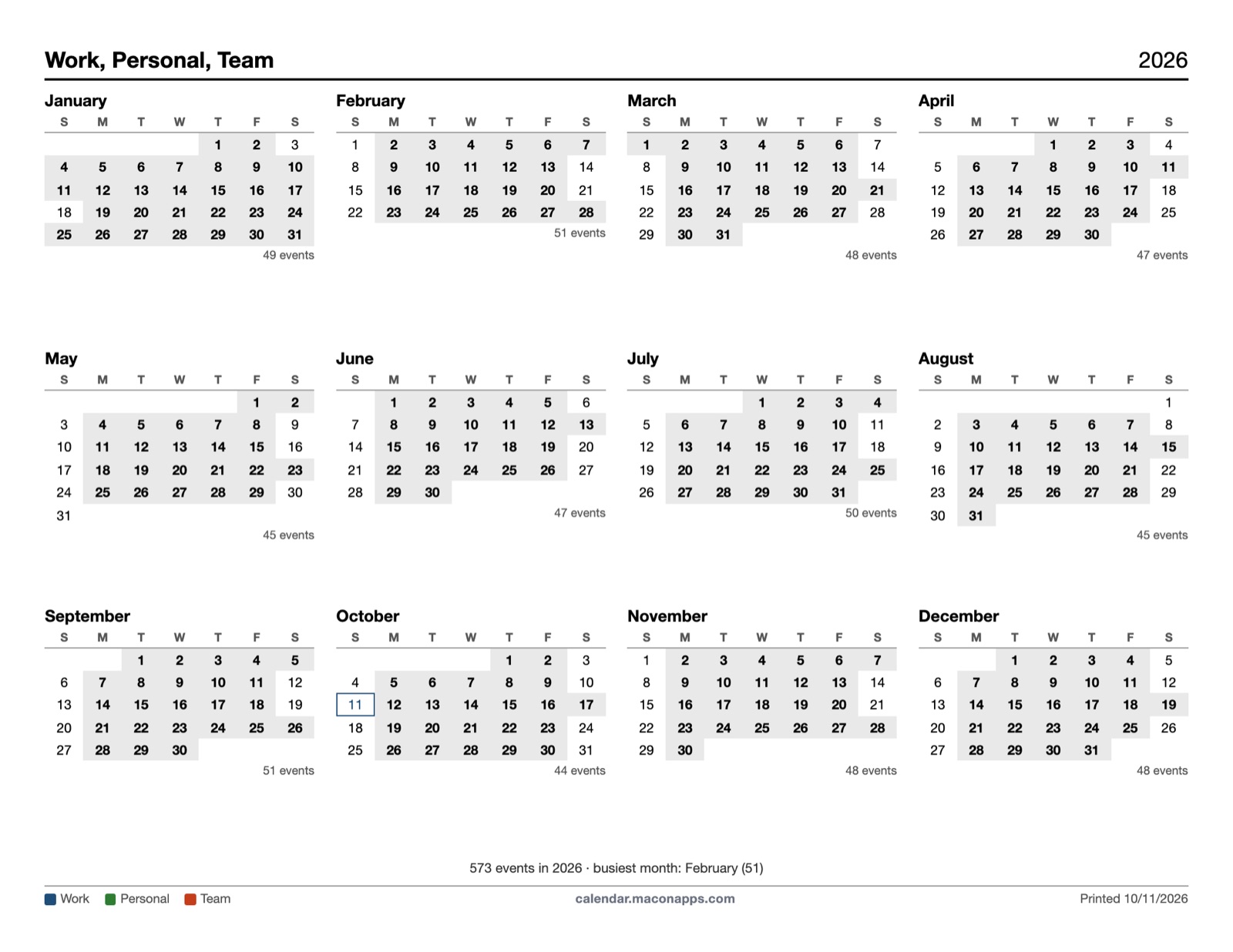
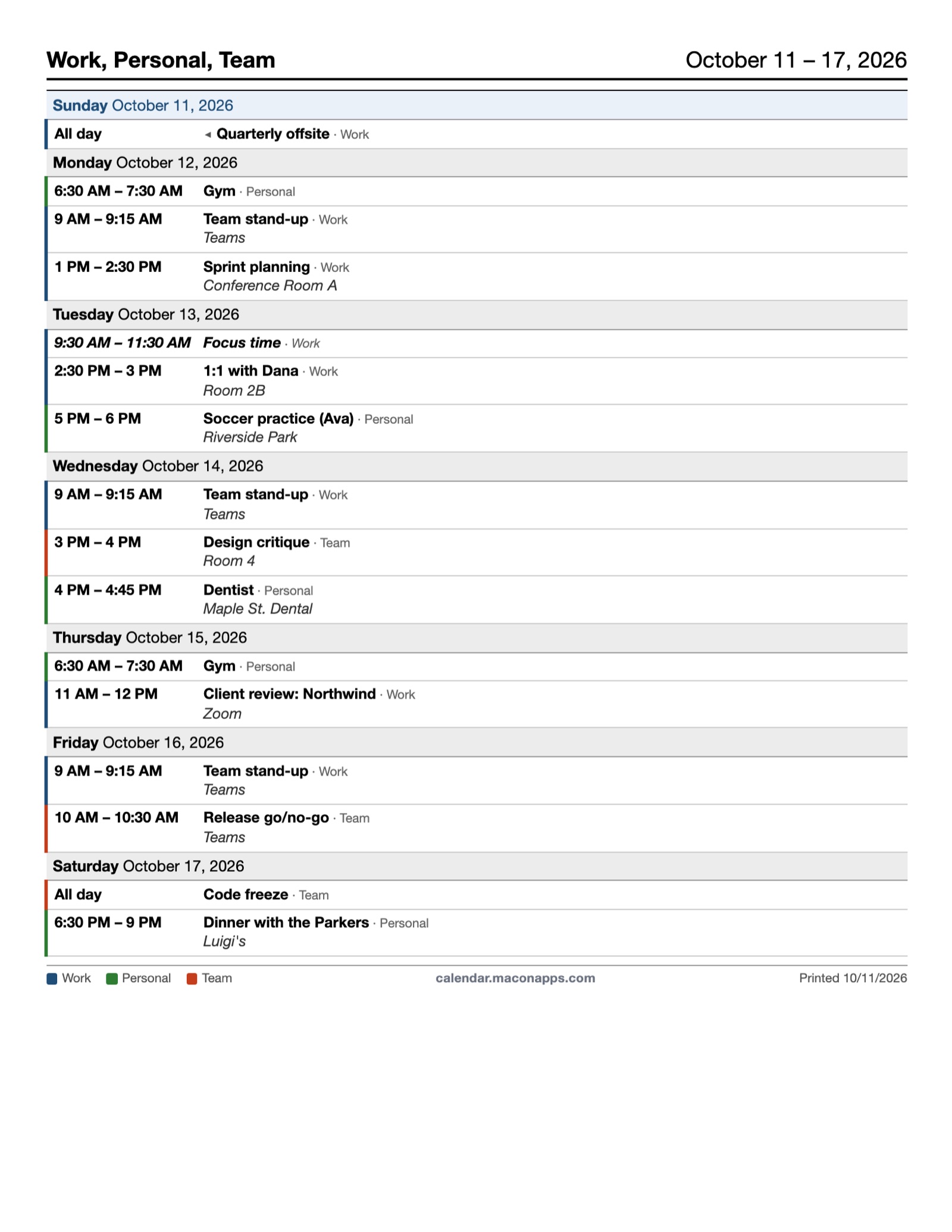
What comes out of the printer
Free prints carry a small calendar.maconapps.com line in the footer next to the calendar legend; Pro prints don't. Pro layouts can be previewed for free, but printing one without Pro produces an upgrade notice instead of the calendar.
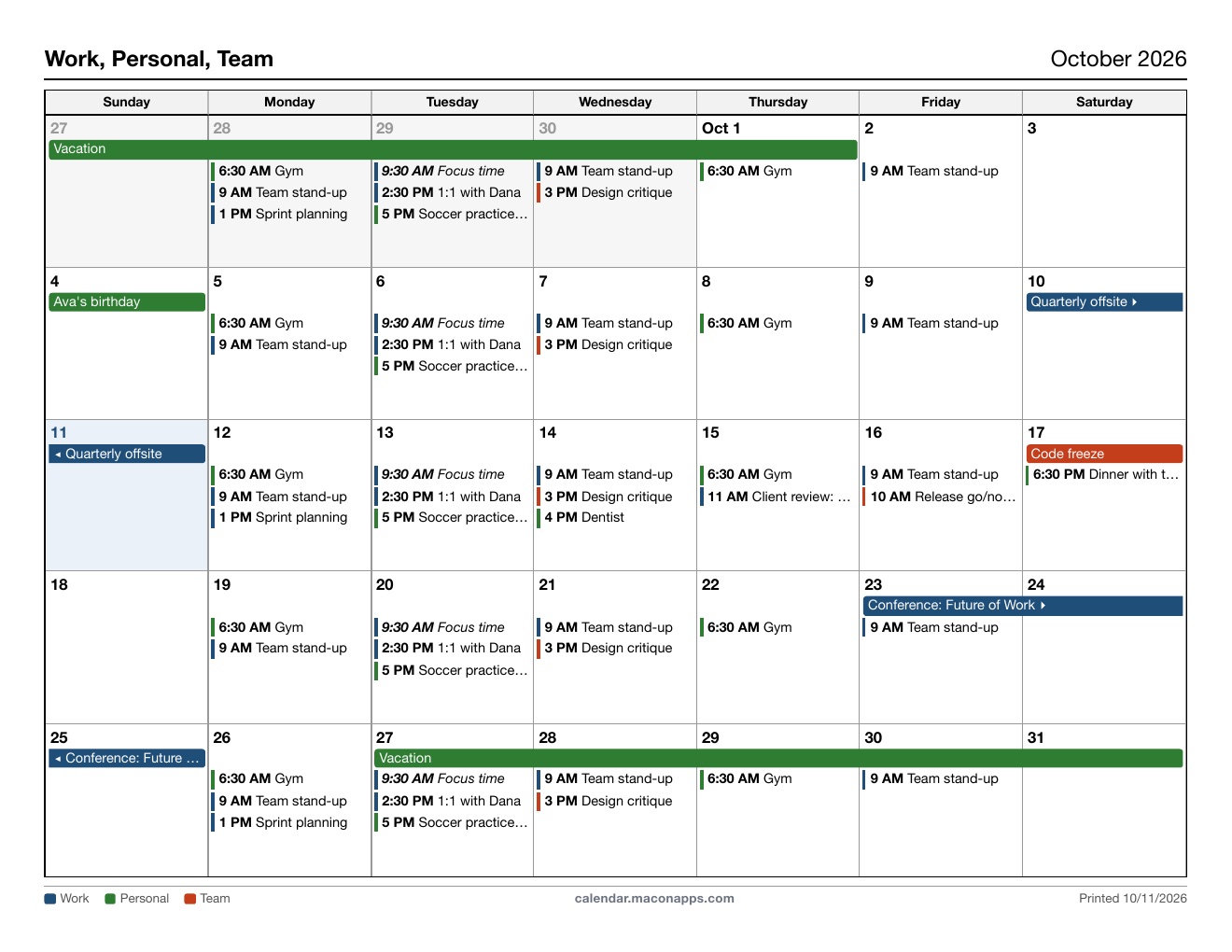
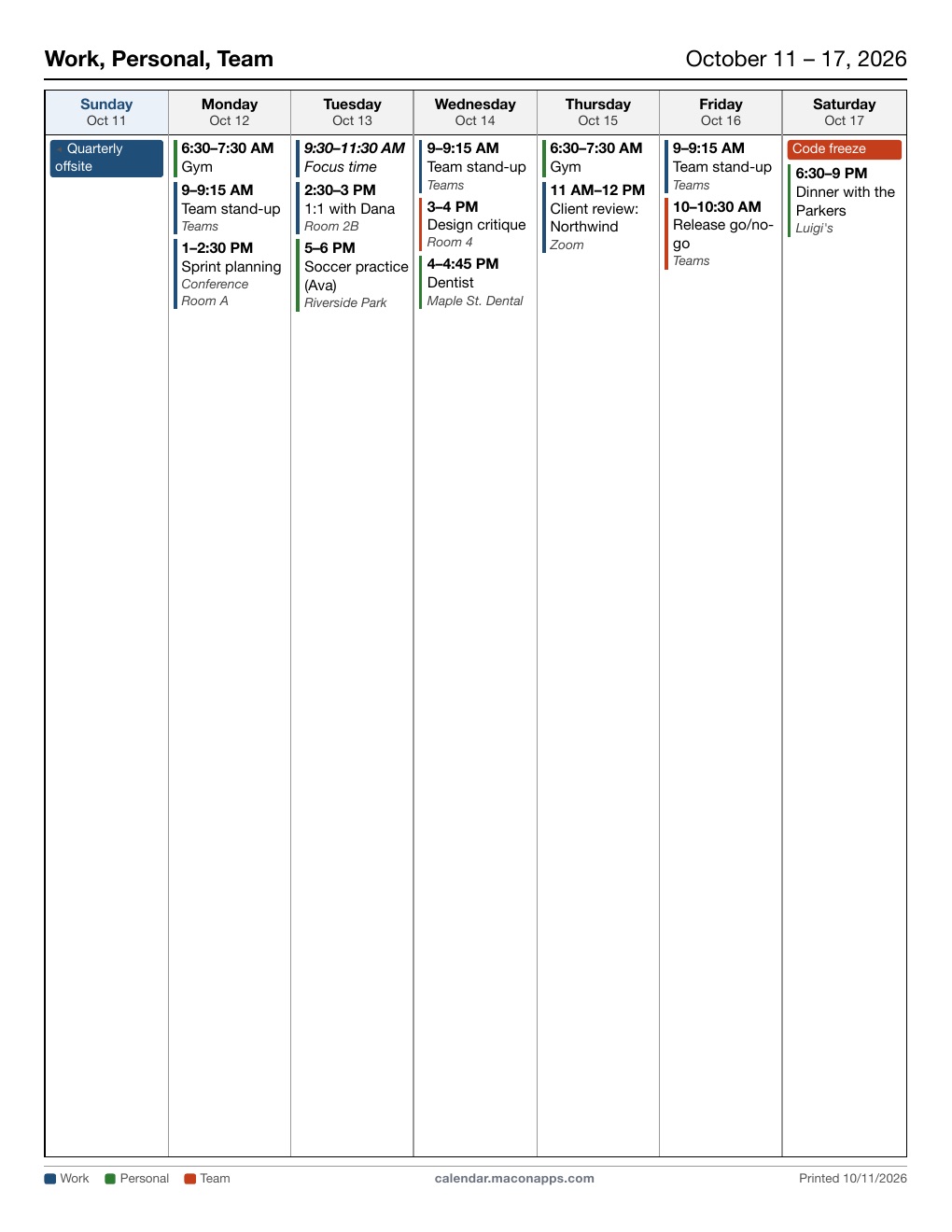
Printer tips. In the browser's print dialog set margins to None or Default (the page already has its own margins), make sure the paper size matches the Page size option, and turn on Background graphics if the calendar colors are missing. For a reusable copy, save as PDF first and print the PDF.
3. PlanFeed — Planner Tasks Back in Outlook
Microsoft retired the Planner calendar feed, so due dates no longer show up next to your meetings. PlanFeed reads everything assigned to you across every plan and gives you three ways to see it in Outlook: a one-off .ics file, tasks pushed into a dedicated Outlook calendar, or a hosted feed Outlook refreshes on its own.
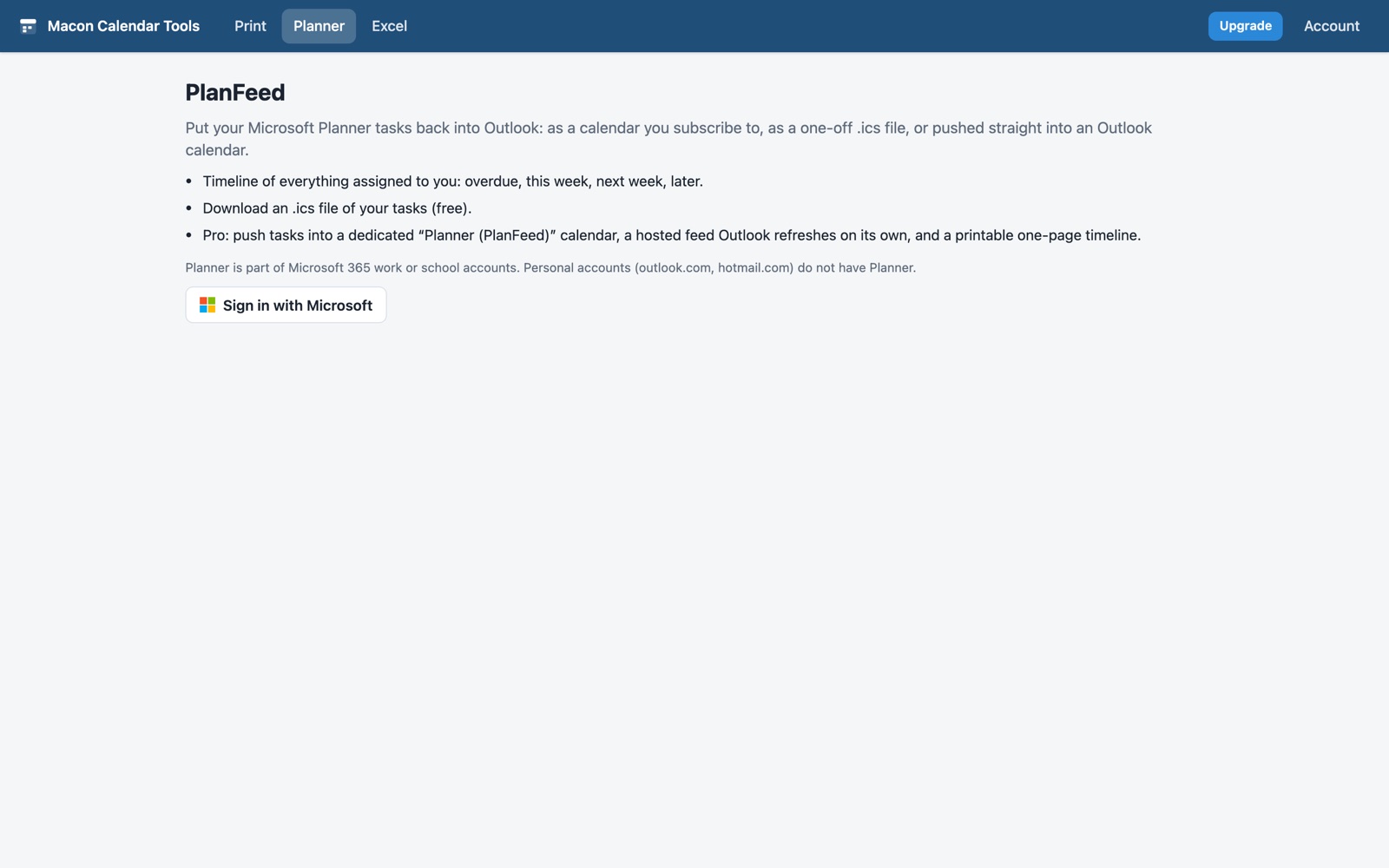
Step by step
- Open Planner and click Sign in with Microsoft with your work or school account. The first time, Microsoft asks you to allow the app to read your tasks.
- The Timeline loads every task assigned to you, grouped into Overdue, This week, Next week and Later, color-coded by plan. Click a plan chip to show only that plan; tick Hide completed tasks to clear the noise. Reload fetches fresh data from Planner.
- Pick how you want the tasks in Outlook:
- Download .ics Free — a one-off file you open or import in Outlook. Only tasks with a due date are included; tick Include completed tasks if you want those too.
- Push to Outlook calendar Pro — creates a calendar named Planner (PlanFeed) in your Outlook and writes one all-day event per task on its due date. Run it again any time: changed tasks are updated, finished or deleted tasks have their events removed, and nothing touches your other calendars. A log of what was created, updated and removed appears on screen.
- Hosted feed Pro — a private feed URL. Copy it, then in Outlook choose Add calendar → Subscribe from web, paste the URL and give it a name. Outlook refreshes it every few hours on its own. Click Update feed now whenever your tasks change, or tick Auto-update when I open this page. Rotate link issues a new URL and kills the old one if it was ever shared by mistake.
- Print timeline Pro — Print preview lays the filtered timeline out on one Letter page grouped by week; Print sends it to the printer or a PDF.
Where the data goes. Your tasks are read from Planner into your browser. The .ics download and the Outlook push never leave your browser and your Microsoft account. The hosted feed is the one place task titles and due dates are stored on our servers, so Outlook can fetch them — behind an unguessable URL that only you have, which you can rotate or stop updating at any time.
4. OutlookXL — Export to Excel
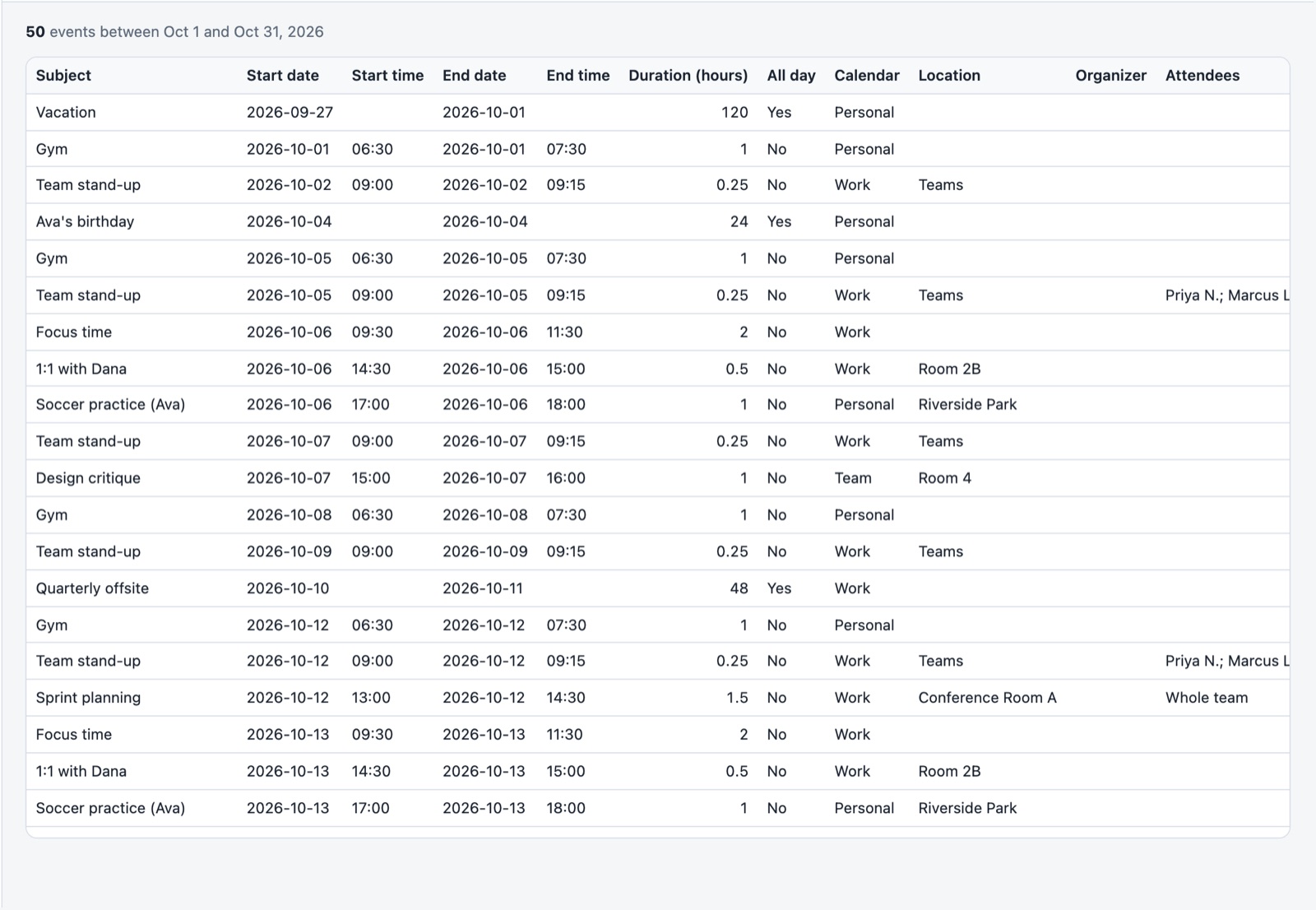
Pick a date range and get a spreadsheet with one row per event: subject, start and end date and time as real date cells, duration in hours, all-day flag, calendar, location, organizer, attendees and more — ready for timesheets, billing, or a pivot table.
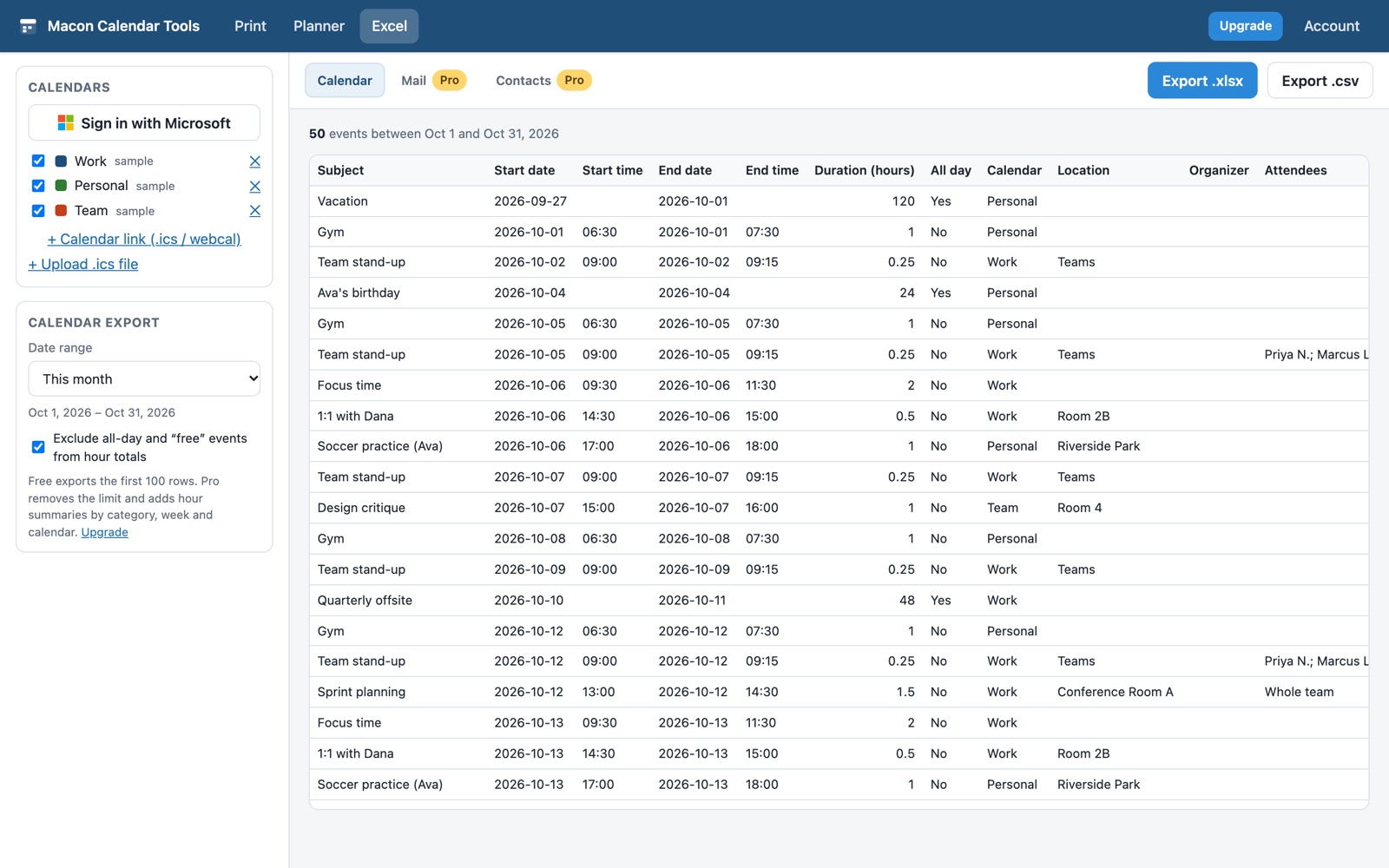
Calendar export Free
- Open Excel. The Calendar tab is selected; the calendars you ticked in section 1 are used.
- Choose a date range — this month, last month, this week, and so on — or pick Custom and enter From / To dates.
- Check the preview. The counter above the table tells you how many events were found.
- Click Export .xlsx for an Excel workbook or Export .csv for a plain file. The file name includes the range (e.g.
calendar-2026-10.xlsx).
The free plan exports the first 100 rows of each sheet. Pro removes the limit and adds three summary sheets to the workbook — Hours by category, Hours by week and Hours by calendar — which you can also preview from the drop-down above the table. Tick Exclude all-day and "free" events from hour totals so vacations and tentative blocks don't inflate the numbers.
Mail export Pro
The Mail tab exports a mail folder — Inbox, Sent or any folder you choose — for a date range: received date, from, to, subject, whether it has attachments, and more, one row per message. Pick the folder, the range and how many messages at most, then export. Handy for records requests, matter files, and "what did I send that week" audits.
Contacts export Pro
The Contacts tab turns your Outlook contacts into a spreadsheet: name, company, job title, every email address and phone number, and addresses in their own columns — the clean list Outlook's own export never quite gives you.
Mail and contacts are read from Microsoft Graph in your browser and built into the spreadsheet there. Nothing is fetched until you have Pro, and nothing is uploaded.
5. Free Plan, Pro Plan & Billing
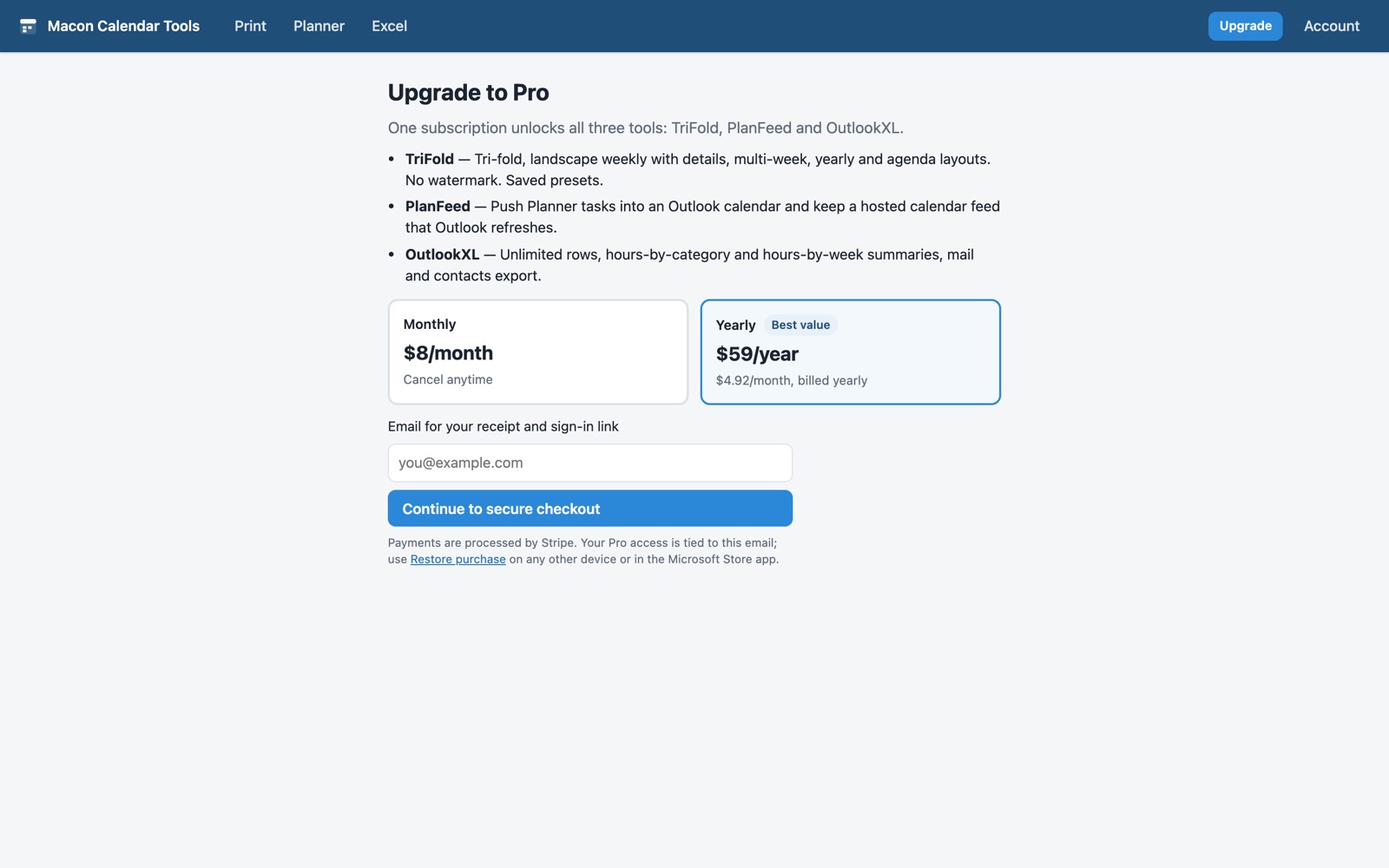
Use the free tools as long as you like. Pro is $8 a month or $59 a year and unlocks all three tools with one subscription, on every computer you use.
| Feature | Free | Pro |
|---|---|---|
| Monthly, weekly and daily print layouts | Yes | Yes |
| Tri-fold, weekly with details, multi-week, yearly, agenda | Preview only | Print & PDF |
| Footer line on prints | calendar.maconapps.com | None |
| Saved print presets | — | Yes |
| Planner timeline and .ics download | Yes | Yes |
| Push tasks into an Outlook calendar | — | Yes |
| Hosted Planner feed with auto-update | — | Yes |
| Printable Planner timeline | — | Yes |
| Calendar export to Excel / CSV | First 100 rows | Unlimited |
| Hours by category / week / calendar sheets | — | Yes |
| Mail and contacts export | — | Yes |
Upgrading
- Click Upgrade in the top bar (or any Upgrade button on a Pro feature).
- Choose Monthly or Yearly, enter the email address you want the subscription tied to, and click Continue to checkout.
- Pay on Stripe's secure checkout page. We never see your card details.
- You're sent back to the app signed in as Pro, and a receipt with restore instructions is emailed to you.
Restoring your purchase on another computer
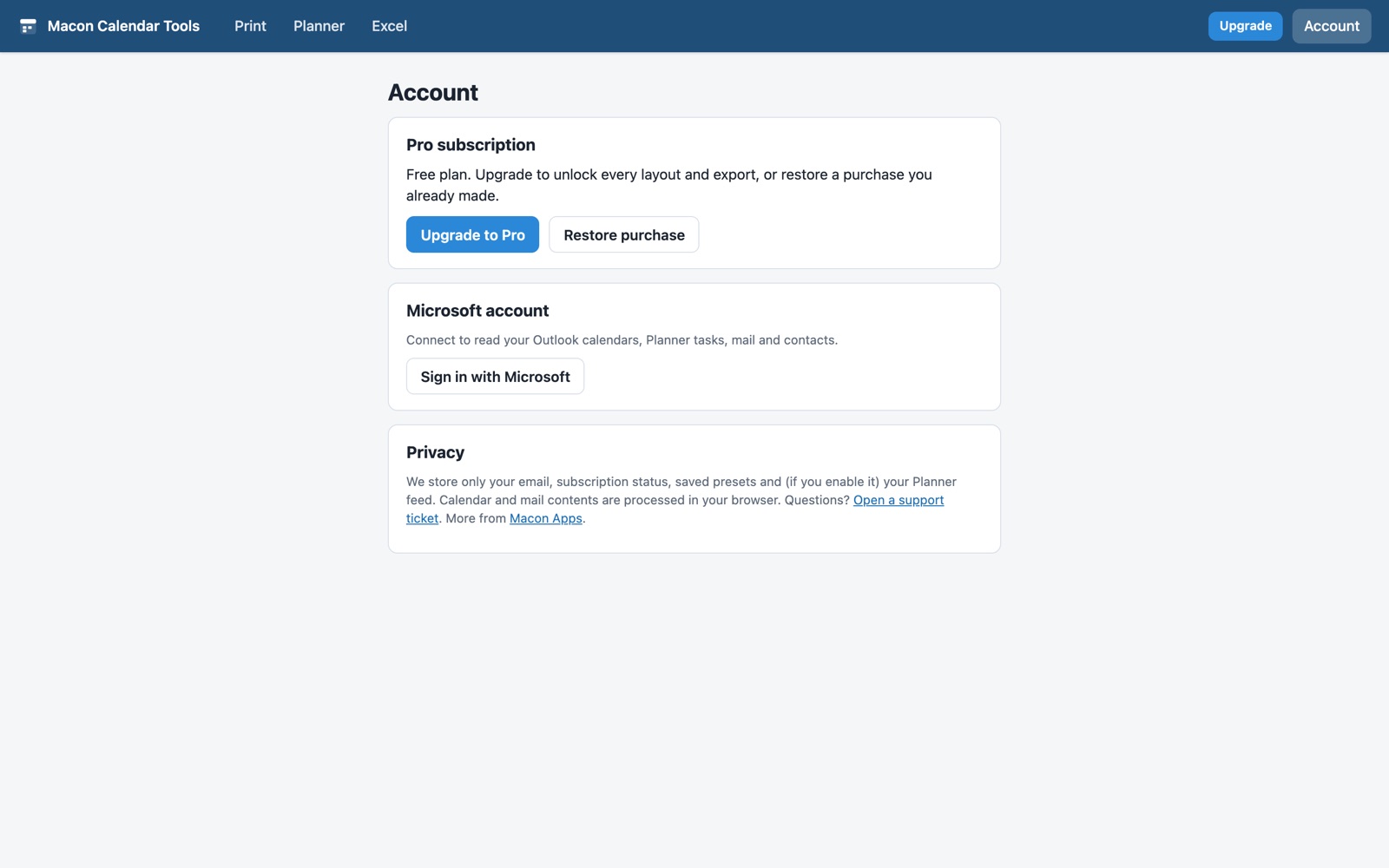
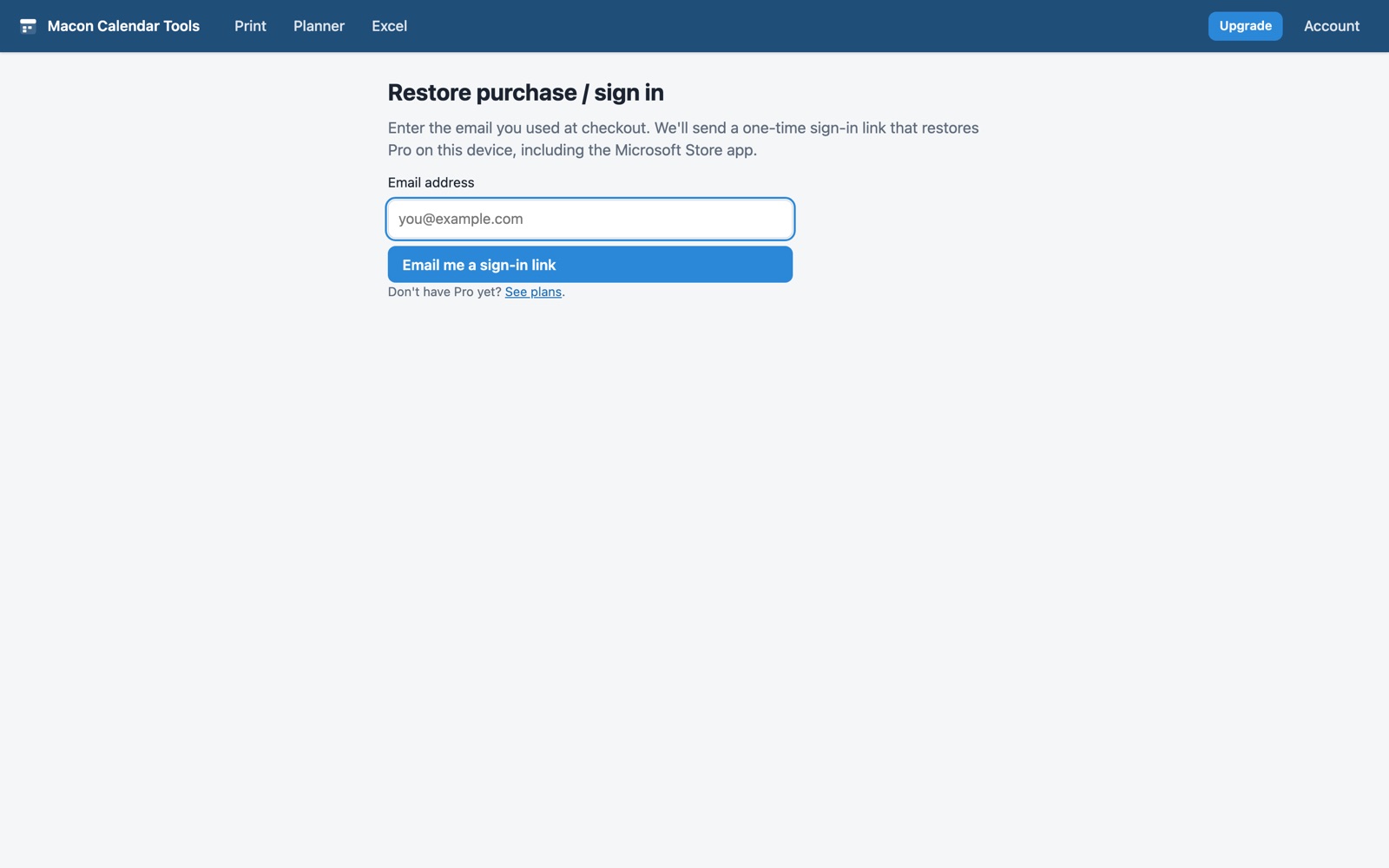
Pro is tied to your email, not to a device. On any computer — or in the Microsoft Store version of the app — open Account → Restore purchase, enter the email you used at checkout, and click Email me a sign-in link. The email carries a one-time link and a 6-digit code: click the link on an ordinary computer, or type the code into the Restore screen when you're in the Microsoft Store app (or when the link opened in a different browser). Either works once and expires after 20 minutes — request another if you miss it.
Managing or cancelling
- Account → Manage billing opens Stripe's customer portal, where you can update your card, switch between monthly and yearly, download invoices, or cancel.
- When you cancel, Pro stays active until the end of the period you already paid for; the Account page shows the date.
- If a renewal payment fails, Pro keeps working for a 7-day grace period while Stripe retries — update the card in Manage billing to keep it.
- Refunds: if Pro did not do what you expected, open a support ticket within 14 days of your first payment and we will refund it.
6. Privacy & Permissions
What we never see: calendar events, Planner tasks, email and contacts are read in your browser directly from Microsoft Graph using the permissions you grant, or parsed from files and links in your browser. Printing and Excel export happen entirely on your computer.
What we store: if you buy Pro — your email address, Stripe customer and subscription identifiers, and subscription status (payment details stay with Stripe); your saved presets; and, only if you use it, the contents of your hosted Planner feed. Nothing else.
Microsoft permissions are requested one at a time, only when you first use the feature that needs them: your profile and calendars for printing and calendar export; write access to calendars only when you push Planner tasks; tasks for PlanFeed; mail and contacts only for those exports. You can revoke them any time from your Microsoft account's Apps and services page.
Full text: privacy policy and terms of use.
7. If Something Looks Wrong
| What you see | What it means / what to do |
|---|---|
| Microsoft sign-in opens and comes straight back with nothing loaded | The sign-in uses a redirect to Microsoft's login page and back. Allow cookies for calendar.maconapps.com and login.microsoftonline.com (strict tracking-protection or private windows can block the return trip), then try again. |
| "Need admin approval" on the Microsoft consent screen | Your organization requires an administrator to approve new apps. Ask your Microsoft 365 admin to grant the app's read permissions, or use a calendar link / .ics file instead for printing and export. |
| Planner shows nothing, or says Planner isn't available | Planner only exists on Microsoft 365 work and school accounts. Personal accounts (outlook.com, hotmail.com, live.com) don't have it. Make sure you signed in with the work account, and that tasks are assigned to you — unassigned tasks are not yours in Planner's eyes. |
| A calendar link won't add | The address must be a public .ics / webcal link, not the page you view the calendar on. In Outlook, publish the calendar first (Settings → Calendar → Shared calendars → Publish) and use the ICS link; in Google, use the Secret address in iCal format. Links behind a sign-in, and feeds over 5 MB, can't be read. |
| Events show at the wrong hour | Times are displayed in your browser's time zone. If a shared calendar was published in another zone, the app converts it; check your computer's time-zone setting if everything is off by the same amount. |
| The printout is cut off or spills onto a second page | Match the printer's paper size to the Page size option (Letter vs A4), set margins to Default or None, and don't scale. Saving as PDF first and printing the PDF avoids most driver quirks. |
| No colors on the printed page | Turn on Background graphics in the browser's print dialog, and check that Print calendar colors is ticked. |
| "calendar.maconapps.com" in the footer of the print | That is the free-plan footer line. It disappears on Pro. |
| A Pro layout printed an upgrade notice instead of the calendar | Pro layouts can be previewed for free but need Pro to print. Upgrade, or if you already have Pro, Restore purchase on this device. |
| Bought Pro, but features are still locked | Pro is tied to the email entered at checkout. Open Account → Restore purchase and use exactly the address on your Stripe receipt. If the Account page says a subscription exists but is past due or canceled, open Manage billing. |
| "This link has expired or was already used" | Sign-in links and codes work once and expire after 20 minutes. Request a new one from Restore purchase. Some mail clients "pre-open" links for security scanning — if that happens, use the 6-digit code from the same email instead of the link. |
| The sign-in email never arrives | Check spam and quarantine folders for a message from [email protected]. For a company mailbox, ask IT to allow that sender. To slow down abuse, the app only sends a few links per email address per quarter-hour. |
| Clicked the sign-in link, but the Microsoft Store app is still on the free plan | The link signed in the browser it opened in, not the Store app. Open Restore purchase inside the Store app and enter the 6-digit code from the same email. |
| Excel export stops at 100 rows | The free plan limit per sheet. Narrow the date range, or upgrade for unlimited rows and the summary sheets. |
| Outlook isn't showing new Planner tasks in the feed | Outlook refreshes subscribed calendars every few hours on its own schedule. Click Update feed now in PlanFeed so the feed itself is current, then wait for Outlook's next refresh (or remove and re-add the subscription to force it). |
| Push created a calendar I didn't expect | Push only ever writes to a calendar named Planner (PlanFeed) that it creates for you. Your other calendars are never modified. Delete that calendar in Outlook if you stop using push. |
Still stuck?
Open a ticket in the support portal — include which tool you were using (Print, Planner or Excel), the browser, and what happened. Never include passwords or API tokens.
Open the Support Portal